Chapter 6. Tuning Practice - Physics
This chapter introduces Physics optimization.
Physics here refers to physics operations using PhysX, not ECS's Unity Physics.
This chapter focuses mainly on 3D Physics, but 2D Physics may also be useful in many areas.
6.1. Turning Physics On and Off
By Unity standard, even if there is no physics component in the scene, the physics engine will always perform physics calculations in every frame.Therefore, if you do not need physics in your game, you should turn off the physics engine.
Physics engine processing can be turned on or off by setting a value to Physics.autoSimulation.For example, if you want to use physics only ingame and not otherwise, set this value to true only ingame.
6.2. Optimizing Fixed Timestep and Fixed Update Frequency
MonoBehaviour's FixedUpdate runs at a fixed time, unlike Update.
The physics engine calls Fixed Update multiple times in one frame to match the elapsed time in the game world with the time in the physics engine world.Therefore, the smaller the value of Fixed Timestep, the more times Fixed Update is called, which causes load.
This time is set in Project Settings as shown at Figure 6.1. Fixed Timestep in Project Settings as shown at . The unit for this value is seconds. The units for this value are seconds. The default value is 0.02, or 20 milliseconds.
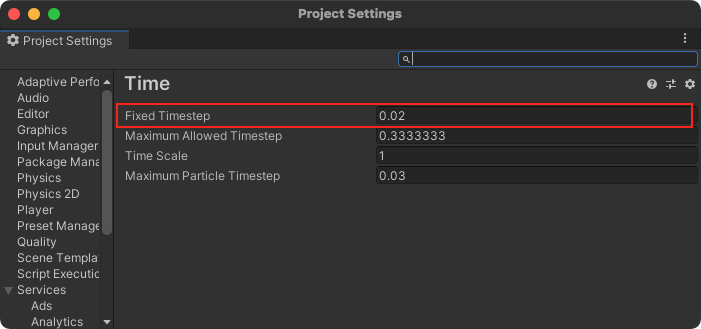
Figure 6.1: Fixed Timestep item in Project Settings
It can also be changed from within the script by manipulating Time.fixedDeltaTime.
Fixed Timestep is generally smaller, the more accurate the physics calculations are and the less likely it is that problems such as collision loss will occur.Therefore, although it is a tradeoff between accuracy and load, it is desirable to set this value as close to the target FPS as possible without causing game behavior problems.
6.2.1. Maximum Allowed Timestep
As mentioned in the previous section, Fixed Update is called multiple times based on the elapsed time from the previous frame.
If the elapsed time from the previous frame is large, for example, due to heavy rendering in a certain frame, Fixed Update will be called more often than usual in that frame.
For example, if Fixed Timestep is 20 milliseconds and the previous frame took 200 milliseconds, Fixed Update will be called 10 times.
This means that if one frame is dropped, the cost of physics operations in the next frame will be higher.This increases the risk that the frame will also fail, which in turn makes the physics operations in the next frame heavier, a phenomenon known in the physics engine world as a negative spiral.
Figure 6.2 To solve this problem, Unity allows the user to set the Maximum Allowed Timestep which is the maximum amount of time that physics operations can use in a single frame.This value defaults to 0.33 seconds, but you may want to set it closer to the target FPS to limit the number of Fixed Update calls and stabilize the frame rate.
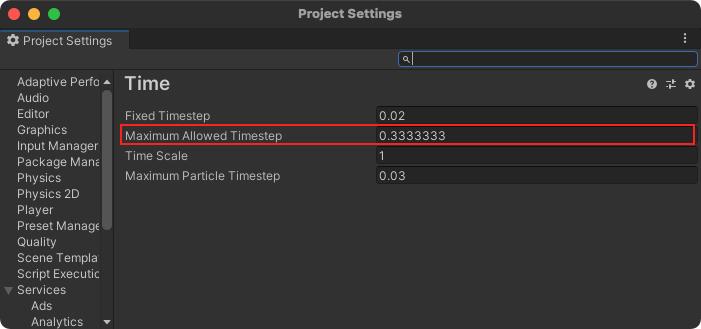
Figure 6.2: Maximum Allowed Timestep item in Project Settings
6.3. Collision Shape Selection
The processing cost of collision detection depends on the shape of the collision and its situation.Although it is difficult to say exactly how much it will cost, a good rule of thumb to remember is that the following collision types are in order of decreasing cost: sphere collider, capsule collider, box collider, and mesh collider.
For example, the capsule collider is often used to approximate the shape of a humanoid character, but if height is not a factor in the game specifications, replacing it with a sphere collider will result in a smaller cost of judging a hit.
Also note that among these shapes, the mesh collider is particularly loaded.
First, consider whether a sphere collider, capsule collider, or box collider and its combinations can be used to prepare collisions.If this is still inconvenient, use a mesh collider.
6.4. Collision Matrix and Layer Optimization
Physics has a setting called "collision matrix" that defines which layers of game objects can collide with each other.This setting can be changed from Physics > Layer Collision Matrix in Project Settings as shown at Figure 6.3.
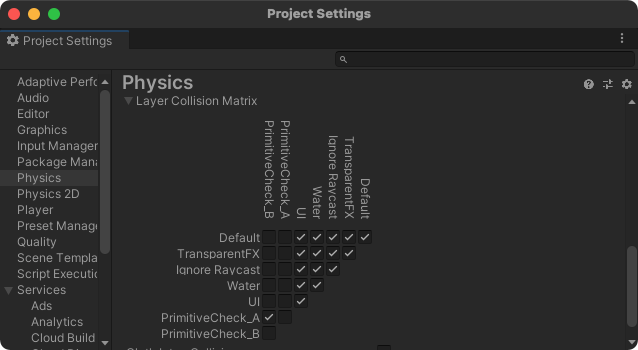
Figure 6.3: Layer Collision Matrix item in Project Settings
The Collision Matrix indicates that if the checkboxes at the intersection of two layers are checked, those layers will collide.
Properly performing this setting is the most efficient way to eliminate calculations between objects that do not need to collide, since layers that do not collide are also excluded from the pre-calculation that takes a rough hit on the object, called the broad phase.
For performance considerations, it is preferable to have a dedicated layer for physics calculations and uncheck all checkboxes between layers that do not need to collide.
6.5. Raycast Optimization
Raycasting is a useful feature that allows you to get collision information between rays you fly and colliding colliders, but it can also be a source of load.
6.5.1. Types of Raycasts
In addition to Physics.Raycast, which determines collision with a line segment, there are other methods such as Physics.SphereCast, which determines collision with other shapes.
However, the more complex the shape to be judged, the higher the load. Considering performance, it is advisable to use only Physics.Raycast as much as possible.
6.5.2. Optimization of Raycast Parameters
In addition to the two parameters of starting point and direction of raycast, Physics.Raycast has two other parameters for performance optimization: maxDistance and layerMask.
maxDistance specifies the maximum length of the ray cast decision, i.e., the length of the ray.
If this parameter is omitted, Mathf.Infinity is passed as the default value, and an attempt is made to take a decision on a very long ray.Such a ray may have a negative impact on the broad phase, or it may hit objects that do not need to be hit in the first place, so do not specify a distance greater than necessary.
layerMask also avoids setting up bits in layers that do not need to be hit.
As with the collision matrix, layers with no standing bits are also excluded from the broad phase, thus reducing computational cost.If this parameter is omitted, the default value is Physics.DefaultRaycastLayers, which collides with all layers except Ignore Raycast, so be sure to specify this parameter as well.
6.5.3. RaycastAll and RaycastNonAlloc
Physics.Raycast returns collision information for one of the colliding colliders, but the Physics.RaycastAll method can be used to obtain multiple collision information.
Physics.RaycastAll returns collision information by dynamically allocating an array of RaycastHit structures.Therefore, each call to this method will result in a GC Alloc, which can cause spikes due to GC.
To avoid this problem, there is a method called Physics.RaycastNonAlloc that, when passed an allocated array as an argument, writes the result to that array and returns it.
For performance considerations, GC Alloc should not occur within FixedUpdate whenever possible.
List 6.1 As shown in Figure 2.1, GC.Alloc can be avoided except during array initialization by maintaining the array to which the results are written in a class field, pooling, or other mechanism, and passing that array to Physics.RaycastNonAlloc.
List 6.1: Physics.RaycastAllNonAlloc Usage of
// Starting point to skip ray var origin = transform.origin; // Direction of ray var direction = Vector3.forward; // Length of ray var maxDistance = 3.0f; // The layer with which the ray will collide var layerMask = 1 << LayerMask.NameToLayer("Player"); // An array to store the ray-cast collision results // This array can be allocated in advance during initialization or // or use the one allocated in the pool. // The maximum number of ray-cast results must be determined in advance // private const int kMaxResultCount = 100; // private readonly RaycastHit[] _results = new RaycastHit[kMaxResultCount]; // All collision information is returned in an array. // Return value is number of collisions var hitCount = Physics.RaycastNonAlloc( origin, direction, _results, layerMask, query ); if (hitCount > 0) { Debug.Log($"{hitCount}人のプレイヤーとの衝突しました"); // The _results array stores collision information in order. var firstHit = _results[0]; // Note that indexes exceeding the number of collisions are invalid information. } |
6.6. Collider and Rigidbody
Unity Physics has two components: Collider, which deals with collisions such as sphere colliders and mesh colliders, and Rigidbody, which is used for rigidbody-based physics simulations.Depending on the combination of these components and their settings, they are classified into three colliders.
An object to which the Collider component is attached and to which the Rigidbody component is not attached is called a Static Collider (Static Collider.
This collider is optimized to be used only for geometry that always stays in the same place and never moves.
Therefore, you should not enable or disable the static collider , nor should you move or scale it during game play.Doing so will cause recalculation due to changes in the internal data structures, which can significantly degrade performance.
Objects to which both the Collider and Rigidbody components are attached should not be used as Dynamic Collider (Dynamic Collider).
This collider can be collided with other objects by the physics engine. It can also react to collisions and forces applied by manipulating the Rigidbody component from scripts.
This makes it the most commonly used collider in games that require physics.
A component with both the Collider and Rigidbody components attached and with the isKinematic property of Rigidbody enabled is a Kinematic Dynamic Collider (A kinematic dynamic collider is a collider that is attached to a component.
Kinematic dynamic colliders can be moved by directly manipulating the Transform component, but not by applying collisions or forces by manipulating the Rigidbody component like normal dynamic colliders.
This collider can be used to optimize the physics when you want to switch the execution of physics operations, or for obstacles such as doors that you want to move occasionally but not the majority of the time.
6.6.1. Rigidbody and sleep states
As part of the optimization, the physics engine determines that if an object to which the Rigidbody component is attached does not move for a certain period of time, the object is considered dormant and its internal state is changed to sleep.Moving to the sleep state minimizes the computational cost for that object unless it is moved by an external force, collision, or other event.
Therefore, objects to which the Rigidbody component is attached that do not need to move can be transitioned to the sleep state whenever possible to reduce the computational cost of physics calculations.
Rigidbody The threshold used to determine if a component should go to sleep is set in Physics in Project Settings as shown in Figure 6.4. Sleep Threshold Sleep Threshold inside Physics in Project Settings, as shown at .Alternatively, if you wish to specify the threshold for individual objects, you can set it from the Rigidbody.sleepThreshold property.
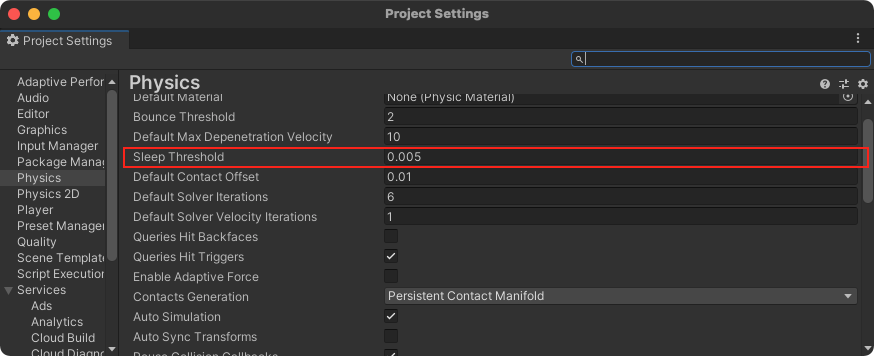
Figure 6.4: Sleep Threshold item in Project Settings
Sleep Threshold represents the mass-normalized kinetic energy of the object when it goes to sleep.
The larger this value is, the faster the object will go to sleep, thus reducing the computational cost. However, the object may appear to come to an abrupt stop because it tends to go to sleep even when moving slowly.If this value is reduced, the above phenomenon is less likely to occur, but on the other hand, it is more difficult for the object to go to sleep, so the computation cost tends to be lower.
Whether Rigidbody is in sleep mode or not can be checked with the Rigidbody.IsSleeping property. The total number of Rigidbody components active on the scene can be checked from the Physics item in the profiler, as shown at Figure 6.5.
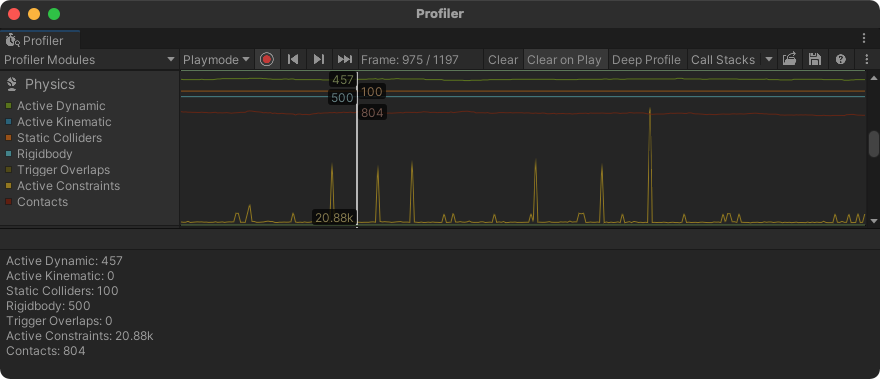
Figure 6.5: Physics item in the Profiler. You can see the number of Rigidbody active as well as the number of each element on the physics engine.
You can also check the number of elements in the Physics Debugger to see which objects on the scene are active.
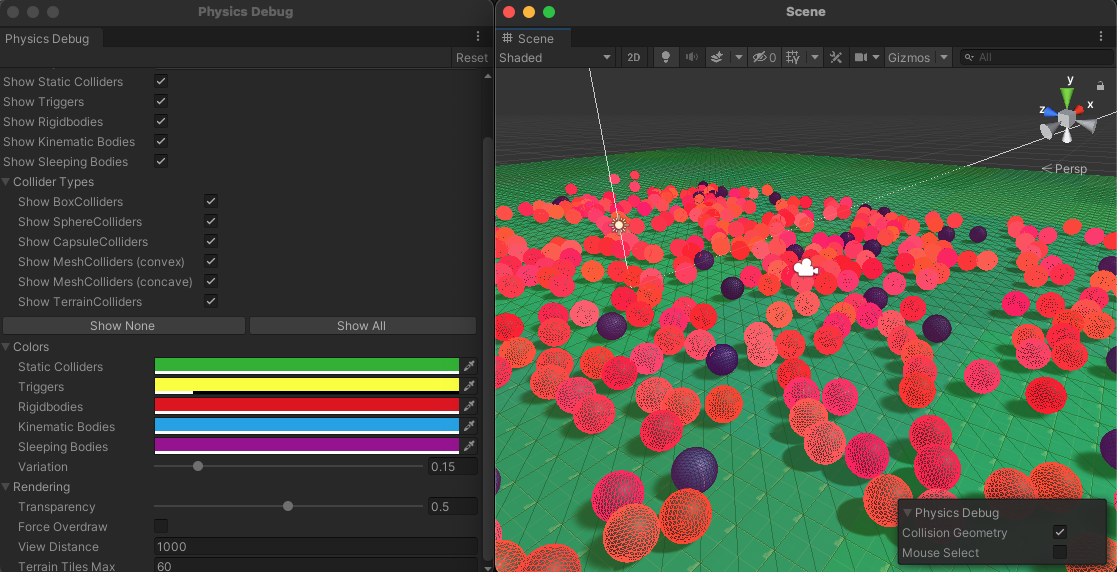
Figure 6.6: Physics Debugger, which displays the state of the objects on the scene in terms of the physics engine, color-coded.
6.7. Collision Detection Optimization
The Rigidbody component allows you to select the algorithm to be used for collision detection in the Collision Detection item.
As of Unity 2020.3, there are four collision detection options
- Discrete
- Continuous
- Continuous Dynamic
- Continuous Speculative
These algorithms can be broadly divided into Discrete Collision Determination and Continuous Speculative and Continuous Speculative Discrete is discrete collision detection and the others belong to continuous collision detection.
Discrete collision detection, as the name implies, teleports objects discretely for each simulation, and collision detection is performed after all objects have been moved.Therefore, there is a possibility of missing a collision, especially if the objects are moving at high speed, causing the objects to slip through.
Continuous collision detection, on the other hand, takes into account collisions between objects before and after they move, thus preventing fast-moving objects from sl ipping through. The computational cost is therefore higher than for discrete collision detection.To optimize performance, create game behavior so that Discrete can be selected whenever possible.
If this is inconvenient, consider Continuous collision detection.Continuous can be used for Dynamic Collider and Static Collider and only for the combination of Conitnuous Dynamic enables continuous collision detection even for dynamic colliders.The computational cost is higher for Continuous Dynamic.
Therefore, if you only want to consider collision detection between dynamic and static colliders, i.e., if your character runs around the field, choose Continuous Dynamic.
Continuous Speculative is less computationally expensive than Continuous Dynamic, despite the fact that continuous speculative collisions between dynamic colliders are valid, but it is also less expensive than Continuous Dynamic for ghost collisions (Ghost Collision However, it should be introduced with caution because of a phenomenon called "Ghost Collision," which occurs when multiple colliders collide with each other in close proximity.
6.8. Optimization of other project settings
In addition to the settings introduced so far, here are some other project settings that have a particular impact on performance optimization.
6.8.1. Physics.autoSyncTransforms
In versions prior to Unity 2018.3, the position of the physics engine was automatically synchronized with Transform each time an API for physics operations such as Physics.Raycast was called.
This process is relatively heavy and can cause spikes when calling APIs for physics operations.
To work around this issue, a setting called Physics.autoSyncTransforms has been added since Unity 2018.3.Setting this value to false will prevent the Transform synchronization process described above when calling the physics API.
Synchronization of Transform will be performed after FixedUpdate is called during physics simulation.This means that if you move the collider and then perform a raycast on the new position of the collider, the raycast will not hit the collider.
6.8.2. Physics.reuseCollisionCallbacks
Prior to Unity 2018.3, every time an event was called to receive a collision call for a Collider component such as OnCollisionEnter, a new Collision instance of the argument was created and passed, resulting in a GC Alloc.
Since this behavior can have a negative impact on game performance depending on how often events are called, a new property Physics.reuseCollisionCallbacks has been exposed since 2018.3.
Setting this value to true will suppress GC Alloc as it internally uses the Collision instance that is passed around when calling events.
This setting has a default value of true in 2018.3 and later, which is fine if you created your project with a relatively new Unity version, but if you created your project with a version prior to 2018.3, this value may be set to false.If this setting is disabled, you should enable it and then modify your code so that the game runs correctly.