Chapter 12. Tuning Practice - Third Party
This chapter introduces some things to keep in mind from a performance perspective when implementing third-party libraries that are often used when developing games in Unity.
12.1. DOTween
DOTween *1 is a library that allows scripts to create smooth animations.For example, an animation that zooms in and out can be easily written as the following code
List 12.1: Example of DOTween usage
public class Example : MonoBehaviour { public void Play() { DOTween.Sequence() .Append(transform.DOScale(Vector3.one * 1.5f, 0.25f)) .Append(transform.DOScale(Vector3.one, 0.125f)); } } |
12.1.1. SetAutoKill
Since the process of creating a tween, such as DOTween.Sequence() or transform.DOScale(...), basically involves memory allocation,consider reusing instances for animations that are frequently replayed.
By default, the tween is automatically discarded when the animation completes, so SetAutoKill(false) suppresses this.The first use case can be replaced with the following code
List 12.2: Reusing Tween Instances
private Tween _tween; private void Awake() { _tween = DOTween.Sequence() .Append(transform.DOScale(Vector3.one * 1.5f, 0.25f)) .Append(transform.DOScale(Vector3.one, 0.125f)) .SetAutoKill(false) .Pause(); } public void Play() { _tween.Restart(); } |
Note that a tween that calls SetAutoKill(false) will leak if it is not explicitly destroyed.Call Kill() when it is no longer needed, or use the SetLink described below.
List 12.3: Explicitly destroying a tween
private void OnDestroy() { _tween.Kill(); } |
12.1.2. SetLink
Tweens that call SetAutoKill(false) or that are made to repeat indefinitely with SetLoops(-1) will not be automatically destroyed, so you will need to manage their lifetime on your own.It is recommended that such a tween be associated with an associated GameObject at SetLink(gameObject) so that when the GameObject is Destroyed, the tween is also destroyed.
List 12.4: Tethering a Tween to the Lifetime of a GameObject
private void Awake() { _tween = DOTween.Sequence() .Append(transform.DOScale(Vector3.one * 1.5f, 0.25f)) .Append(transform.DOScale(Vector3.one, 0.125f)) .SetAutoKill(false) .SetLink(gameObject) .Pause(); } |
12.1.3. DOTween Inspector
During playback in the Unity Editor, a GameObject named [DOTween] You can check the state and settings of the DOTween from the Inspector by selecting the GameObject named
![[DOTween] GameObject](images_en/tuning_practice_third_party/dotween_inspector_game_object.png)
Figure 12.1: [DOTween] GameObject
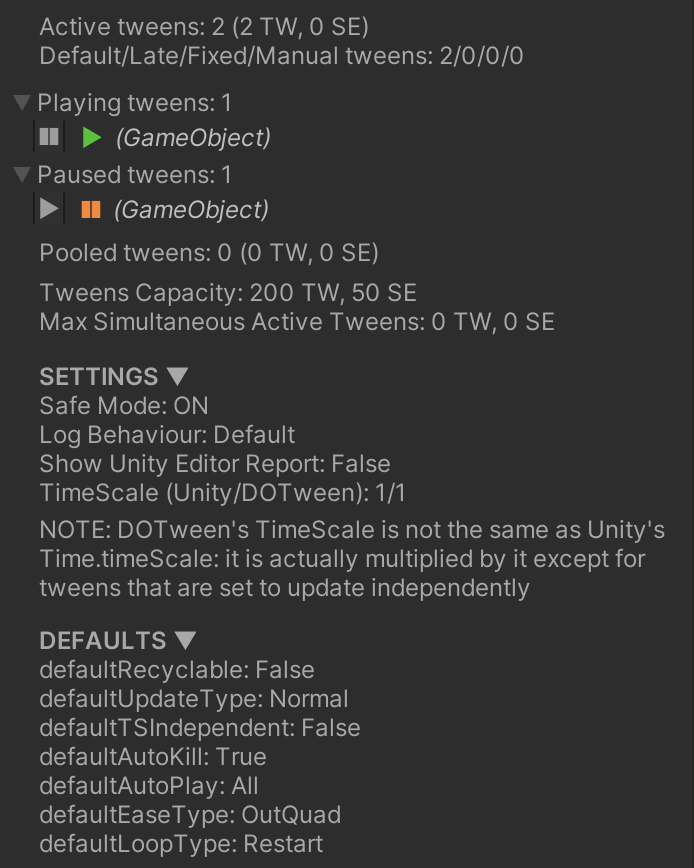
Figure 12.2: DOTween Inspector
It is also useful to check for tween objects that continue to move even though their associated GameObjects have been discardedand for tween objects that are in a Pause state and leaking without being discarded.
12.2. UniRx
UniRx *2 is a library implementing Reactive Extensions optimized for Unity.With a rich set of operators and helpers for Unity, event handling of complex conditions can be written in a concise manner.
12.2.1. Unsubscribe
UniRx allows you to subscribe ( Subscribe) to the stream publisher IObservable to receive notifications of its messages.
When subscribing, instances of objects to receive notifications, callbacks to process messages, etc. are created.To avoid these instances remaining in memory beyond the lifetime of the Subscribe party, it is basically the Subscribe party's responsibility to unsubscribe when it no longer needs to receivenotifications.
There are several ways to unsubscribe, but for performance considerations, it is better to explicitly Dispose retain the IDisposable return value of Subscribe.
List 12.5:
public class Example : MonoBehaviour { private IDisposable _disposable; private void Awake() { _disposable = Observable.EveryUpdate() .Subscribe(_ => { // Processes to be executed every frame }); } private void OnDestroy() { _disposable.Dispose(); } } |
If your class inherits from MonoBehaviour, you can also call AddTo(this) to automatically unsubscribe at the timing of your own Destroy.Although there is an overhead of calling AddComponent internally to monitor the Destroy, it is a good idea to use this method, which is simpler to write.
List 12.6:
private void Awake() { Observable.EveryUpdate() .Subscribe(_ => { // Processing to be executed every frame }) .AddTo(this); } |
12.3. UniTask
UniTask is a powerful library for high-performance asynchronous processing in Unity, featuring zero-allocation asynchronous processing with thevalue-based UniTask type.It can also control the execution timing according to Unity's PlayerLoop, thus completely replacing conventional coroutines.
12.3.1. UniTask v2
UniTask v2, a major upgrade of UniTask, was released in June 2020.UniTask v2 features significant performance improvements, such as zero-allocation of the entire async method, and added features such asasynchronous LINQ support and await support for external assets. *3
On the other hand, be careful when updating from UniTask v1, as it includesdestructive changes, such as UniTask.Delay(...) and other tasks returned by Factory being invoked at invocation time,prohibiting multiple await to normal UniTask instances, *4 and so on.However, aggressive optimizations have further improved performance, so basically UniTask v2 is the way to go.
[*4] UniTask.Preserve UniTask v2 can be converted to a UniTask that can be awaited multiple times by using
12.3.2. UniTask Tracker
UniTask Tracker can be used to visualize waiting UniTasks and the stack trace of their creation.
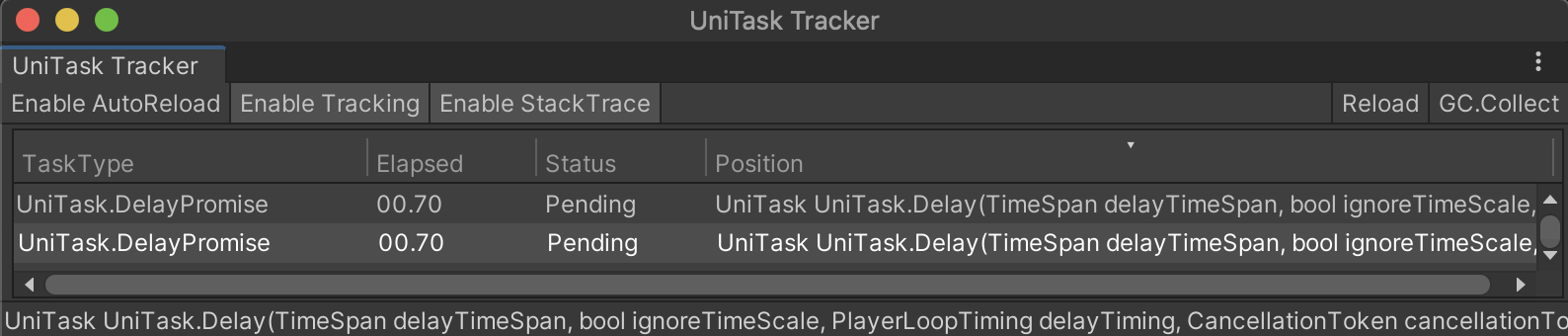
Figure 12.3: UniTask Tracker
For example, suppose you have a MonoBehaviour whose _hp is decremented by 1 when it collides with something.
List 12.7:
public class Example : MonoBehaviour { private int _hp = 10; public UniTask WaitForDeadAsync() { return UniTask.WaitUntil(() => _hp <= 0); } private void OnCollisionEnter(Collision collision) { _hp -= 1; } } |
If _hp of this MonoBehaviour is Destroyed beforeis fully depleted, _hp will not be depleted any further, so UniTask, the return value of WaitForDeadAsync, will lose the opportunity to complete, andwill continue to wait.
It is recommended that you use this tool to check for UniTask leaking due to a misconfiguration of termination conditions.
Preventing Task Leaks
The reason why the example code leaks a task is that it does not take into account the case where the task itself is destroyed before the termination condition is met.
To do this, simply check to see if the task itself has been destroyed.Or, the CancellationToken obtained by this.GetCancellationTokenOnDestroy() to itself can be passed to WaitForDeadAsync so that the task is canceled whenis Destroyed.
List 12.8:
// Pattern for checking whether the user is Destroyed or not public UniTask WaitForDeadAsync() { return UniTask.WaitUntil(() => this == null || _hp <= 0); } // Pattern for passing a CancellationToken public UniTask WaitForDeadAsync(CancellationToken token) { return UniTask.WaitUntil( () => _hp <= 0, cancellationToken: token); } |
List 12.9: Example of WaitForDeadAsync(CancellationToken) call
Example example = ... var token = example.GetCancellationTokenOnDestroy(); await example.WaitForDeadAsync(token); |
At Destroy time, the former UniTask completes without incident, while the latter OperationCanceledException is thrown.Which behavior is preferable depends on the situation, and the appropriate implementation should be chosen.