Chapter 8. Tuning Practice - UI
Tuning Practices for uGUI, the Unity standard UI system, and TextMeshPro, the mechanism for drawing text to the screen.
8.1. Canvas partitioning
In uGUI, when there is a change in an element in Canvas, a process (rebuild) runs to rebuild the entireCanvas UI mesh.A change is any change, such as active switching, moving or resizing,from a major change in appearance to a minor change that is not apparent at first glance.The cost of the rebuild process is high, so if it is performed too many times or if the number of UIs inCanvas is large, performance will be adversely affected.
In contrast, the cost ofrebuilds can be reduced by dividing Canvas by some degree of UI cohesion.For example, if you have UIs that animate and UIs that do not animate, you can minimize theanimation rebuilds by placing them under a separate Canvas.
However, you need to think carefully about howto split them, as splitting Canvas will not work for drawing batches.
Splitting Canvas is also valid when Canvas is nested under Canvas.If the elements contained in the child Canvas change, a rebuild of the child Canvas will only run, not the parent Canvas.However, upon closer inspection, it seems that the situation is different when the UI in the child Canvas is switched to the active state by SetActive.In this case, if a large number of UIs are placed in the parent Canvas, there seems to be a phenomenon that causes a high load.I do not know the details of why this behavior occurs, but it seems that care should be taken when switching the active state of the UI in the nested Canvas.
8.2. UnityWhite
When developing UIs, it is often the case that we want to display a simple rectangle-shaped object.This is where UnityWhite comes in handy.UnityWhite is a Unity built-in texture that is used when the Image or RawImage component does not specify theimage to be used ( Figure 8.1).You can see how UnityWhite is used in the Frame Debugger ( Figure 8.2).This mechanism can be used to draw a white rectangle, soa simple rectangle type display can be achieved by combining this with a multiplying color.
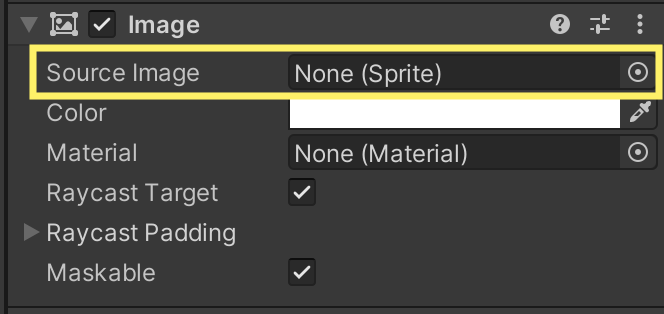
Figure 8.1: Using UnityWhite
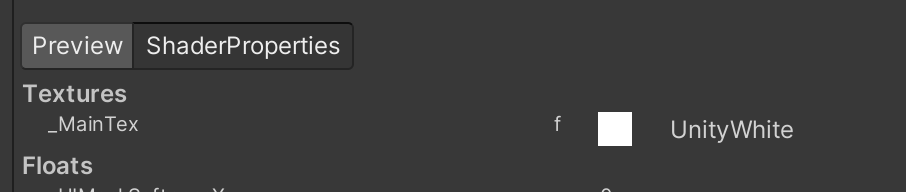
Figure 8.2: UnityWhite in use.
However, since UnityWhite is a different texture than the SpriteAtlas provided in the project,draw batches are interrupted.This increases draw calls and reduces drawing efficiency.
Therefore, you should add a small (e.g., 4 x 4 pixel) white square image to SpriteAtlas and usethat Sprite to draw a simple rectangle.This will allow the batch to work, since the same SpriteAtlas will be used for the same material.
8.3. Layout component
uGUI provides a Layout component that allows you to neatly align objects.For example, VerticalLayoutGroup is used for vertical alignment, and GridLayoutGroup is used for alignment on thegrid ( Figure 8.3).
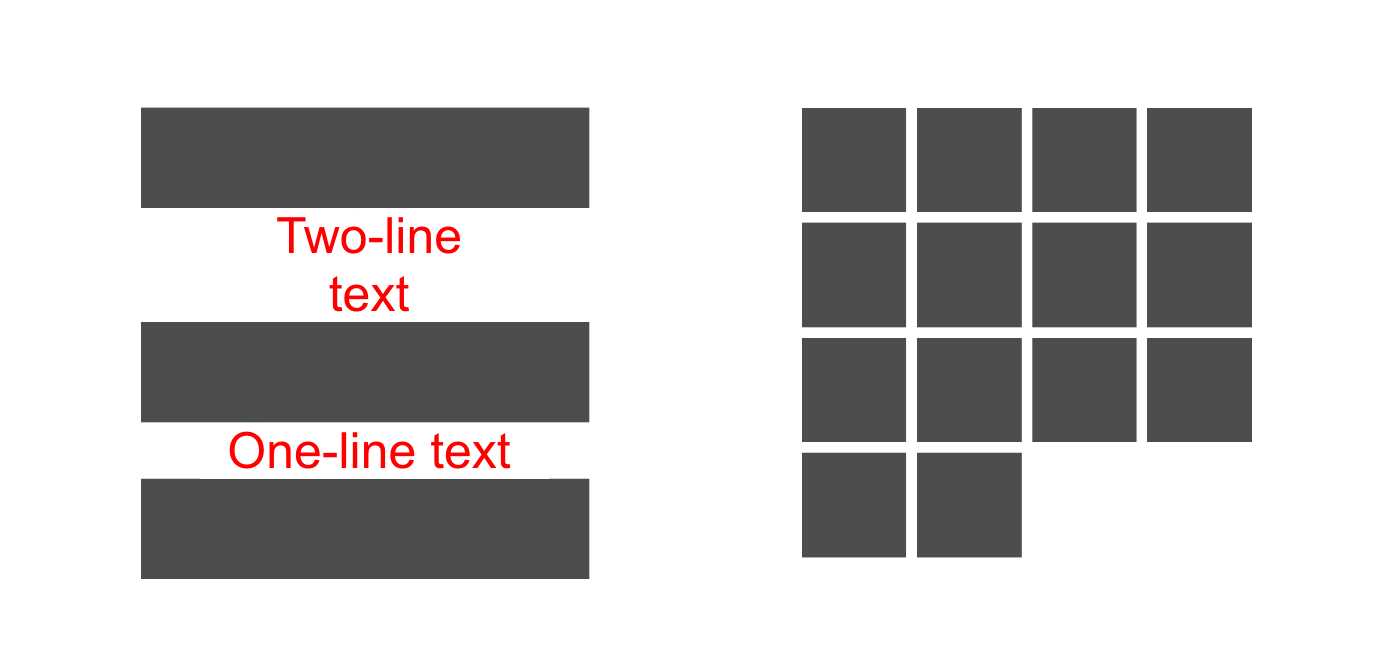
Figure 8.3: Example using VerticalLayoutGroup on the left and GridLayoutGroup on the right
When using the Layout component, Layout rebuilds occur when the target object is created or when certain properties are edited.Layout rebuilds, like mesh rebuilds, are costly processes.
To avoid performance degradation due to Layout rebuilds, it is effective to avoid usingLayout components as much as possible.
For example, if you do not need dynamic placement, such as text that changes placement based on its content, you do not need to use theLayout component.If you really need dynamic placement, or if it is used a lot on the screen, it may be better to control it withyour own scripts.Also, if the requirement is to be placed in a specific position relative to the parent even if the parent changes size, this can be accomplished by adjusting theRectTransform anchors.If you use a Layout component when creating a prefab because it is convenient for placement,be sure to delete it and save it.
8.4. Raycast Target
Graphic , the base class for Image and RawImage, has a propertyRaycast Target ( Figure 8.4).When this property is enabled, its Graphic becomes the target for clicks and touches.When the screen is clicked or touched, objects with this property enabled will be the target ofprocessing, so disabling this property as much as possible will improve performance.
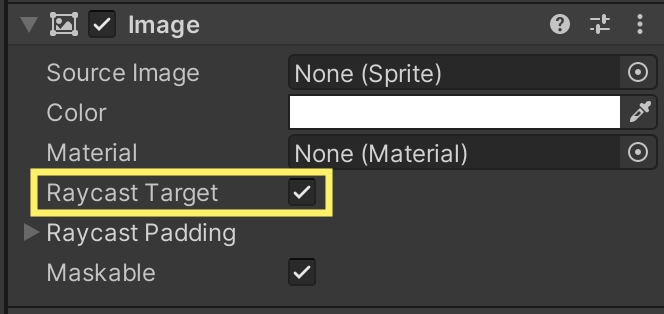
Figure 8.4: Raycast Target property
This property is enabled by default, butactually many Graphic do not require this property to be enabled.On the other hand, Unity has a feature called preset *1 that allows you to change the default value in your project.Specifically, you can create presets for the Image and RawImage components, respectively, and registerthem as default presets from the Preset Manager in Project Settings.You may also use this feature to disable the Raycast Target property by default.
8.5. Masks
To represent masks in uGUI, use either the Mask component or the RectMask2d component.
Since Mask uses stencils to realize masks, the drawing cost increases with each additional component.On the other hand, RectMask2d uses shader parameters to realize masks, so the increase in drawing cost is suppressed.However, Mask can be hollowed out in any shape, while RectMask2d can only be hollowed out as a rectangle.
It is a common belief that RectMask2d should be selected if available, butrecent Unity users should also be careful about using RectMask2d.
Specifically, when RectMask2d is enabled, the CPU load for culling every frame is proportional toas its masking target increases.This phenomenon, which generates load every frame even when the UI is not moving anything, seems to be aside effect of a fix to issue *2 that was included in Unity 2019.3, according to comments in the uGUI's internal implementation.
Therefore, it is useful to take measures to avoid using RectMask2d as much as possible, to use enabled as false when it is not needed even ifis used, and to keepmasked targets to the minimum necessary.
8.6. TextMeshPro
The common way to set text in TextMeshPro is to assign text to the text property,but there is another method, SetText.
There are many overloads to SetText,for example, that take a string and a value of type float as arguments.If you use this method like List 8.1, you can print the value of the second argument.However, assume that label is a variable of type TMP_Text(or inherited from it) andnumber is of type float.
List 8.1: Example of using SetText
label.SetText("{0}", number); |
The advantage of this method is that it reduces the cost of generating strings.
List 8.2: Example of not using SetText
label.text = number.ToString(); |
List 8.2 In the method using the text property, as in the following example, ToString() of typefloat is executed, so the string generation cost is incurred each time this process is executed.In contrast, the method using SetText is designed to generate as few strings as possible, which is a performance advantage when the text to be displayed changes frequently, as is the case with.
This feature of TextMeshPro is also very powerful when combined with ZString *3.ZString is a library that reduces memory allocation in string generation.ZString provides many extension methods for the TMP_Text type,and by using those methods, flexible text display can be achieved while reducing the cost of string generation.
8.7. UI Display Switching
uGUI components are characterized by the high cost of active switching of objects by SetActive.This is due to the fact that OnEnable sets the Dirty flag for various rebuilds and performs initialization related to masks.Therefore, it is important to consider alternatives to the SetActive method for switching the display of the UI.
The first method is to change enabled of Canvas to false( Figure 8.5).This will prevent all objects under Canvas from being rendered.Therefore, this method has the disadvantage that it can only be used if you want to hide all the objects under Canvas.
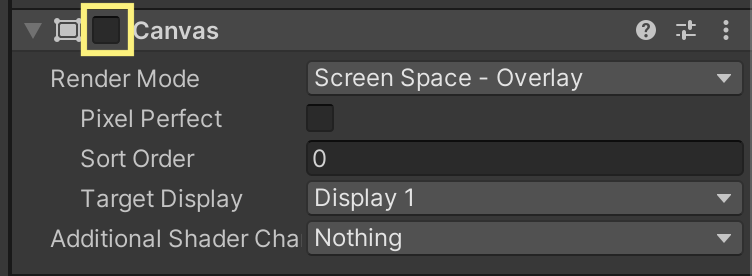
Figure 8.5: Canvas Disabling
Another method is to use CanvasGroup.CanvasGroup has a function that allows you to adjust the transparency of all objects under it at once.If you use this function and set the transparency to 0, you can hide all the objects underits CanvasGroup( Figure 8.6).
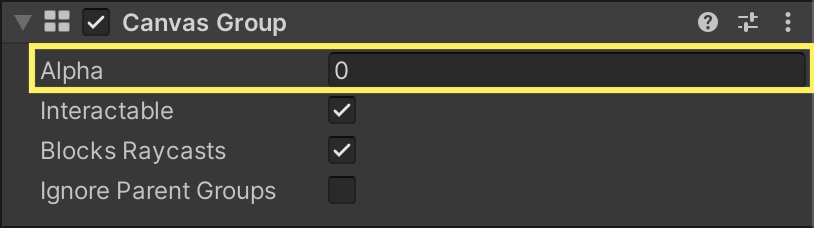
Figure 8.6: CanvasGroup Set the transparency of the to 0.
While these methods are expected to avoid the load caused by SetActive, you may need to be careful becauseGameObject will remain in the active state.For example, if Update methods are defined, be aware that they will continue to run even in the hidden state, which maylead to an unexpected increase in load.
For reference, we measured the processing time for 1280 GameObject with Image components attached, when switching between visible and hidden states usingeach method ( Table 8.1).The processing time was measured using the Unity editor, and Deep Profile was not used.The processing time of the methodis the sum of the execution time of the actual switching *4 and the execution time of UIEvents.WillRenderCanvases in the frame.The execution time of UIEvents.WillRenderCanvases is added together because the UI rebuild is performed in.
[*4] For example, if SetActive, the SetActive method call is enclosed in Profiler.BeginSample and Profiler.EndSample to measure the time.
Table 8.1: Processing time for display switching
| Method | Processing time (display) | Processing time (hidden) |
|---|---|---|
SetActive | 323.79ms | 209.93ms |
Canvas of enabled | 61.25ms | 61.23ms |
CanvasGroup of alpha | 3.64ms | 3.40ms |
Table 8.1 From the results of, we found that the method using CanvasGroup has by far the shortest processing time in the situation we tried this time.