Chapter 11. Tuning Practice - Player Settings
This chapter introduces the Player items in Project Settings that affect performance.
11.1. Scripting Backend
Unity allows you to choose between Mono and IL2CPP as the Scripting Backend on platforms such as Android and Standalone (Windows, macOS, Linux).We recommend choosing IL2CPP because of the performance gains as described in "IL2CPP" of Chapter 2 "Fundamentals".
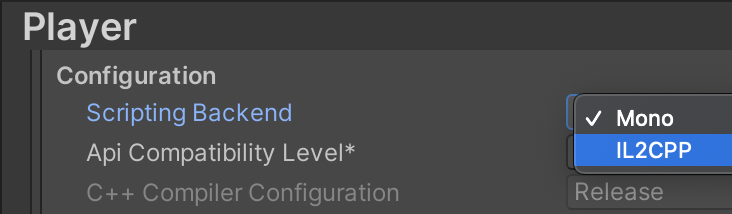
Figure 11.1: Configuring Scripting Backend
In addition, changing the Scripting Backend to IL2CPP will also change the C++ Compiler Configuration can be selected.
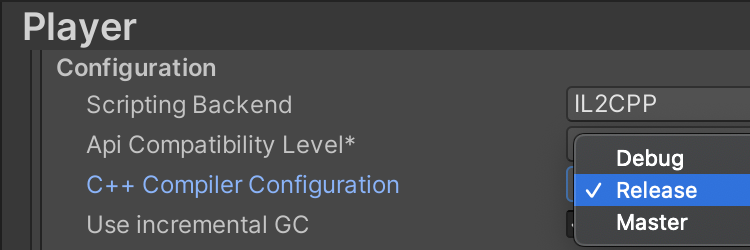
Figure 11.2: Setting of C++ Compiler Configuration
Here you can choose between Debug, Release, and Master, each of which has a tradeoff between build time and degree of optimization, so it is best to use the one that best suits your build objectives.
11.1.1. Debug
Debug does not perform well at runtime because no optimization is performed, but build time is the shortest compared to the other settings.
11.1.2. Release
Optimization improves run-time performance and reduces the size of built binaries, but increases build time.
11.1.3. Master
All optimizations available for the platform are enabled.For example, Windows builds will use more aggressive optimizations such as link-time code generation (LTCG).In return, build times will be even longer than with the Release setting, but Unity recommends using the Master setting for production builds if this is acceptable.
11.2. Strip Engine Code / Managed Stripping Level
Strip Engine Code is a Unity feature that allows you to set the Managed Stripping Level is from the CIL bytecode generated by compiling C#, andis expected to reduce the size of the built binary by removing unused code, respectively.
However, since the determination of whether a given code is used relies strongly on static analysis, types that are not directly referenced in thecode, or code that is dynamically called in reflection, may be mistakenly removed.
In such cases, the link.xml file or by specifying the Preserve attribute. *1
11.3. Accelerometer Frequency (iOS)
This is an iOS-specific setting that allows you to change the sampling frequency of the accelerometer.The default setting is 60 Hz, so set the frequency appropriately.If you are not using the accelerometer, be sure to disable the setting.
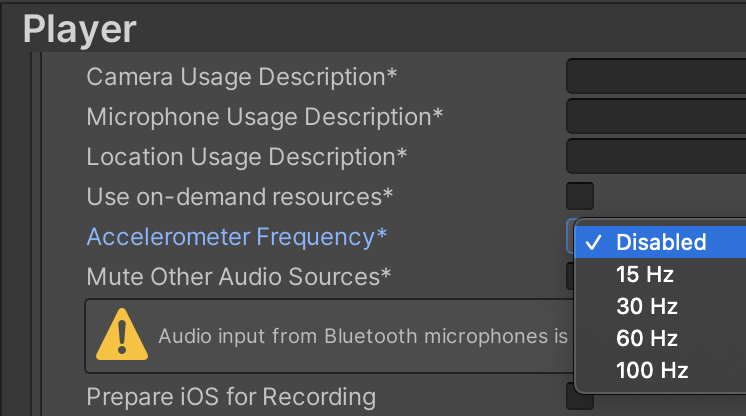
Figure 11.3: Sampling Frequency Setting