Chapter 6. Shader Warmup with GraphicsStateCollection
When a shader is used for rendering for the first time, compilation runs at runtime and can cause a hitch known as shader compilation stutter. This chapter covers shader warmup with GraphicsStateCollection on mobile platforms (Metal and Vulkan), from basic usage to real-world cases where stutter remains after adoption and how to address them. The content of this chapter targets Unity 6.3 LTS (6000.3).
6.1. GraphicsStateCollection Overview
GraphicsStateCollection (GSC) is an API available since Unity 6 (出典ID: gsc_docs). It records the combinations of shader variants and graphics states (rendering settings used at draw time) that are used during gameplay, and precompiles them together, that is, warms them up. It is positioned as a replacement for ShaderVariantCollection on modern graphics APIs such as Metal, Vulkan, and D3D12. Note that as of Unity 6000.3, it is an Experimental API in the UnityEngine.Experimental.Rendering namespace, and its specification may change in future versions.
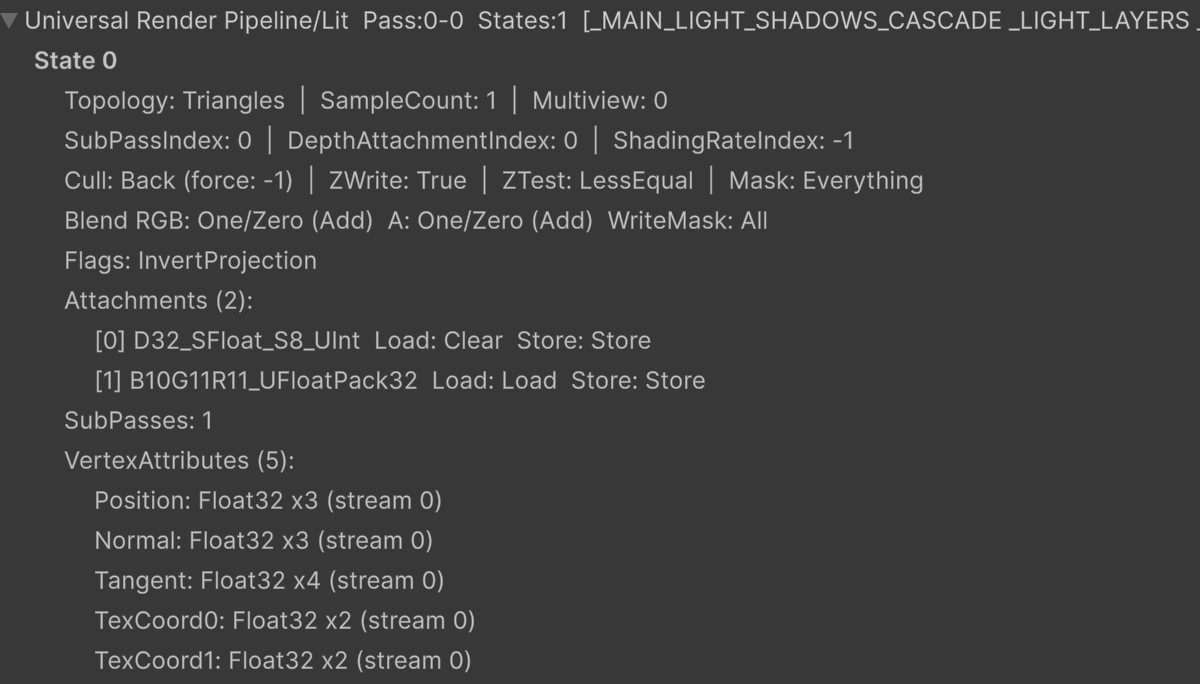
Figure 6.1: Example of information recorded in a GSC
The figure shows an example in which the information recorded in a GSC is retrieved by a script and displayed in an EditorWindow. How to retrieve the recorded contents is described at the end of this chapter (List 6.11).
A shader cannot run on the GPU as is; it must be compiled into GPU machine instructions. However, machine instructions differ by GPU model and driver, so shaders cannot be distributed precompiled for all devices. Therefore, a shader goes through the following flow before it runs on the GPU.
- The developer writes a shader (asset) in a shader language such as HLSL
- At build time, Unity compiles the shader into an intermediate representation for each graphics API and stores it in the app or AssetBundle. This intermediate representation is SPIR-V for Vulkan and Metal Shading Language (MSL) for Metal (出典ID: gsc_spirv_msl)
- While the app is running, when the shader is used for rendering for the first time, a shader program is generated from the stored intermediate representation
- Then, the GPU driver combines the shader program with the rendering settings and compiles it into GPU machine instructions
The basic idea of shader warmup is to complete the runtime compilation in steps 3 and 4 in advance, before the first draw.
A single shader generates multiple executable programs, one for each pass (rendering stage) and for each combination of conditions such as light influence and fog (shader keywords). This unit of generation is called a shader variant.
6.1.1. Pipeline State Object
In modern graphics APIs, the unit compiled at draw time is called a Pipeline State Object (PSO). A PSO is an object in which the GPU driver compiles a shader variant together with rendering settings (vertex layout, render pass attachments such as color format and MSAA, blend state, depth test, and stencil state) into GPU machine instructions. Generated PSOs are cached on the device and reused for the same rendering settings. In other words, even for the same shader variant, different rendering settings are compiled as separate PSOs.
6.1.2. Causes of Shader Compilation Stutter
Stutter is caused by a two-stage compilation process that runs at runtime. When the GPU draws a shader variant for the first time, shader program generation on the Main Thread (step 3) and PSO generation by the GPU driver on the Render Thread (step 4, compilation into machine instructions) occur.
In the Unity Profiler, the former can be observed as Shader.CreateGPUProgram on the Main Thread, and the latter as GpuProgramMetal.GetCachedPipeline (iOS) or CreateGraphicsPipelineImpl (Android) on the Render Thread. PSO generation is especially costly on Metal (iOS) and Vulkan (Android), and is the main cause of stutter at first draw. Warmup using a GSC is a means of completing this PSO generation at any chosen time, such as right after the game starts.
The conventional ShaderVariantCollection can manage which shader variants to compile, but it does not hold rendering settings. Therefore, warmup with ShaderVariantCollection stops at shader program generation in step 3, and the GPU driver generates the PSO again at actual draw time, so stutter remains.
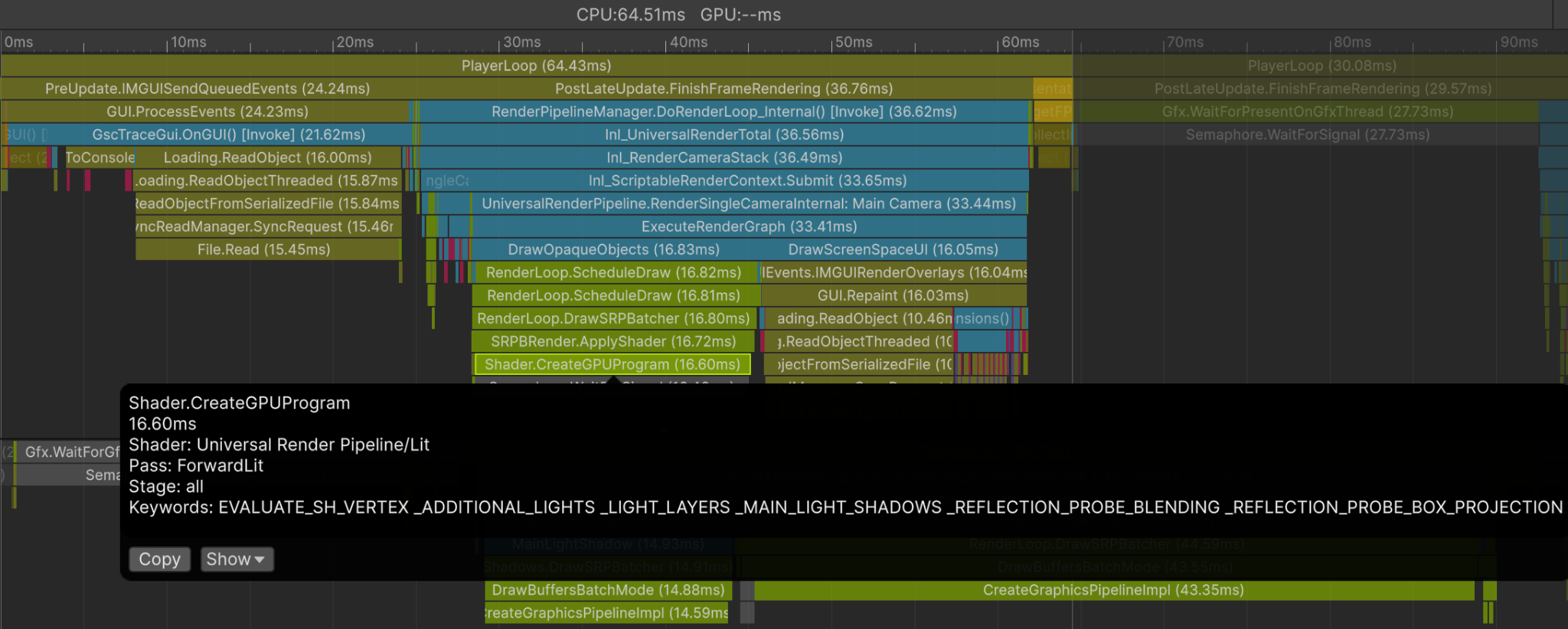
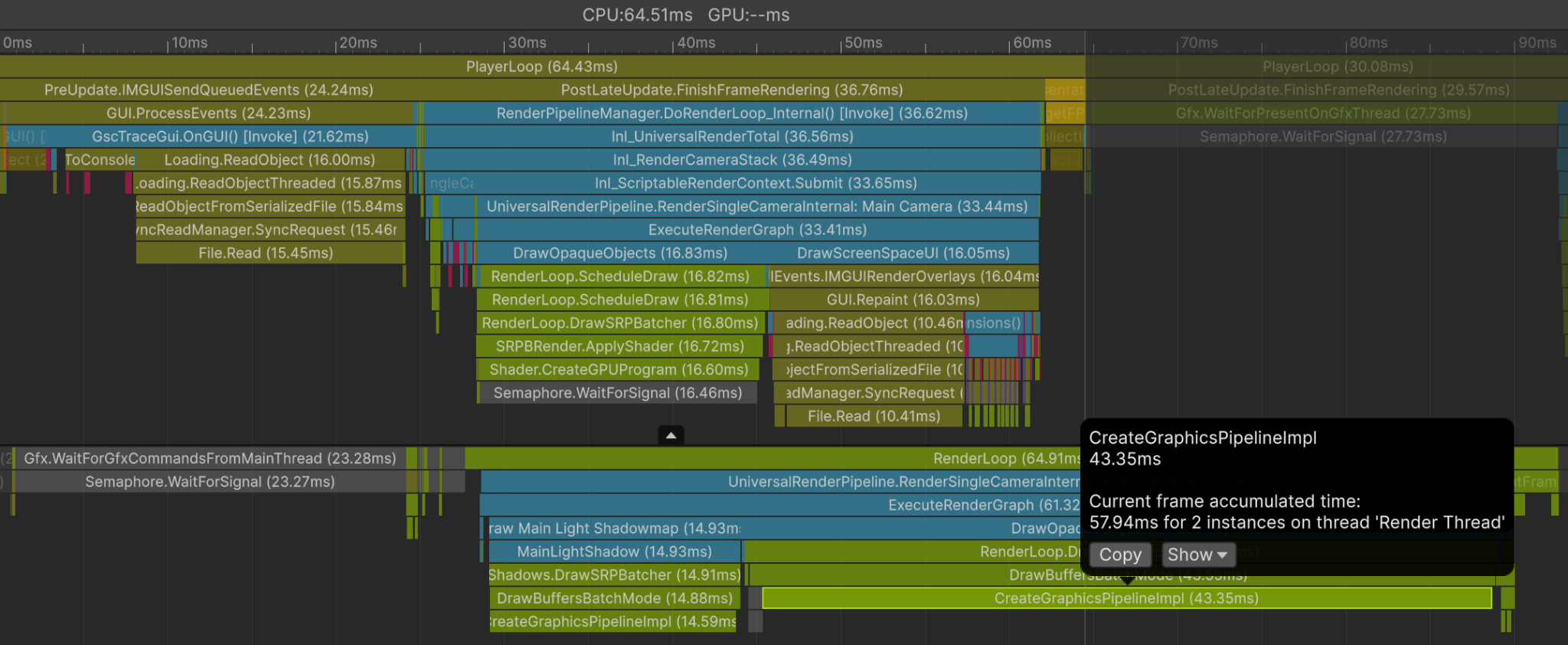
Figure 6.2: Example of compilation on the Main Thread and Render Thread
The figure shows a frame in which compilation occurred on Vulkan (Android), displayed in the Profiler Timeline view. The upper part shows Shader.CreateGPUProgram selected on the Main Thread, where the target shader name, pass name, and keywords can be checked. The lower part shows CreateGraphicsPipelineImpl selected on the Render Thread. In this example, a single PSO generation takes tens of milliseconds, which shows that it is the main cause of stutter.
6.2. Warmup Flow Using a GSC
Warmup using a GSC is divided into two phases: collecting rendering settings (tracing) and warmup (precompilation).
6.2.1. Collecting Rendering Settings
List 6.1 shows the basic form of tracing. The rendering settings of objects drawn during tracing are recorded in the GSC as GraphicsStateCollection.GraphicsState. The listing puts everything into a single method, but in practice BeginTrace() and EndTrace() are called at separate times, and draws are collected over multiple frames.
List 6.1: Tracing rendering settings
1 2 3 4 5 6 7 8 9 10 11 12 13 14 | private GraphicsStateCollection _gsc; void Trace() { // Start collection _gsc = new GraphicsStateCollection(); _gsc.BeginTrace(); // Render the objects to be warmed up over multiple frames here // The rendered graphics settings are recorded as GraphicsState // End collection and save _gsc.EndTrace(); _gsc.SaveToFile(path); } |
The generated GraphicsStateCollection.GraphicsState differs for each graphics API. Perform tracing on the device that actually runs the built app.
6.2.2. Warmup (Precompilation)
Load the collected GSC and run warmup (List 6.2). In this example, the GSC imported into the project is loaded as an Addressables asset.
List 6.2: Distributed warmup with WarmUpProgressively
1 2 3 4 5 6 7 8 9 10 11 12 13 14 15 16 17 18 19 | async Task WarmUpAsync() { // Run after loading the assets that contain the shaders _gsc = await Addressables.LoadAssetAsync<GraphicsStateCollection>(address).Task; // Incremental WarmUp (Jobs-based; compiles n items per frame) StartCoroutine(WarmUpCoroutine()); } IEnumerator WarmUpCoroutine() { JobHandle handle = default; int requestedCount = 0; // isWarmedUp may not become true on error, so completion is determined by the number of requested items while (requestedCount < _gsc.totalGraphicsStateCount) { handle = _gsc.WarmUpProgressively(4, handle); handle.Complete(); requestedCount += 4; yield return null; } } |
The key points when implementing warmup are as follows.
- Warmup can also be run with
WarmUp(dependency), but it compiles everything at once and causes a spike. Specify the number of compilations per call withWarmUpProgressively(count, dependency)to distribute them over multiple frames - Run it after the shader assets are loaded. If a shader instance does not exist, warmup of that variant is skipped
- Completion can be checked with
isWarmedUporcompletedWarmupCount == totalGraphicsStateCount - However, if a warmup error occurs,
isWarmedUpmay never become true (confirmed in Unity 6000.3). For this reason, the listing determines completion by comparing the total number of requested compilations withtotalGraphicsStateCount, which avoids an infinite loop
6.3. Implementation Example of a Collection Scenario
Another approach is to call BeginTrace() at app startup and collect rendering settings by playing manually. However, depending on the scale of the app, it is difficult to cover everything manually with every version update. This section introduces a method that collects settings by mechanically running a scenario that draws assets sequentially in a dedicated collection scene. The implementation example uses Addressables and UniTask (出典ID: gsc_unitask). Even if you do not use them, you can implement the same flow by replacing asynchronous asset loading and waiting for one frame of rendering with the mechanisms of your own project. The overall flow is as follows.
- Download the required assets (not needed if everything is covered by built-in assets)
- Get the Addresses of the assets needed for collection from the Addressables content catalog (
IResourceLocator) - Switch Quality Settings (not needed if shaders do not change with Quality Settings)
- Start collection (
BeginTrace()) - Load the scene additively, then sequentially load and draw the assets to collect (model rendering,
ParticleSystemplayback, and Timeline playback) - End collection (
EndTrace()) - Remove unneeded shaders from the GSC
- Save the GSC (
SaveToFile(path)) - Unload the scene and repeat steps 3 to 8 while switching Quality Settings
From the content catalog, obtain the assets that affect rendering settings (scenes), model assets such as characters and props, effect assets, and Timeline assets, and draw them sequentially while switching rendering settings to collect comprehensively. Collection is performed for each quality level because the rendering settings that affect PSOs, such as MSAA and HDR, change depending on the Quality Level.
List 6.3 shows the skeleton of the process. Tracing is repeated for each quality level, and the result is saved to a separate file named after the Quality Level. At runtime, the file corresponding to the current Quality Level is selected, loaded, and warmed up.
List 6.3: Skeleton of the collection scenario
1 2 3 4 5 6 7 8 9 10 11 12 13 14 15 16 17 18 19 20 21 22 23 24 25 26 27 28 29 30 31 | private GraphicsStateCollection _gsc = new GraphicsStateCollection(); private async UniTaskVoid StartAsync() { // Fetch the content catalog and download the required assets // Fetch the lists of Addresses by Prefix in advance await AddressableSetupAsync(); var qualitySettingNames = QualitySettings.names; for (var i = 0; i < qualitySettingNames.Length; i++) { QualitySettings.SetQualityLevel(i); await TraceAsync(); } } private async UniTask TraceAsync() { // Start GSC collection _gsc.ClearVariants(); _gsc.BeginTrace(); // Run the collection scenario await ExecuteScenarioAsync(); // End GSC collection _gsc.EndTrace(); // Remove shaders not targeted for collection from the GSC RemoveUnnecessaryVariants(); var qualityLevelName = QualitySettings.names[QualitySettings.GetQualityLevel()]; _gsc.SaveToFile(_gscSavePathFormat + $"_{qualityLevelName}"); } |
In the scenario body, models, effects, and Timelines are drawn sequentially for each scene. List 6.4 is an excerpt of the part that creates and draws character models in batches of a few at a time. Waiting for one frame of rendering records that frame's rendering settings in the GSC.
List 6.4: Sequential drawing of model assets (excerpt)
1 2 3 4 5 6 7 8 9 10 11 12 13 14 15 16 17 18 19 20 21 | // Collect character models for (var i = 0; i < _charaAddressArray.Length; i += _characterNum) { // Spawn a few character models at a time var batchCount = Mathf.Min(_characterNum, _charaAddressArray.Length - i); for (var j = 0; j < batchCount; j++) { var charaHandle = Addressables.LoadAssetAsync<GameObject>(_charaAddressArray[i + j]); var charaPrefab = await charaHandle.ToUniTask(); // Place them evenly at positions within the camera view var pos = new Vector3((j - batchCount * 0.5f) * 2f, 0f, 5f); _charaObjectArray[j] = Object.Instantiate(charaPrefab, pos, Quaternion.identity); Addressables.Release(charaHandle); } // Wait one frame for rendering await UniTask.NextFrame(); for (var j = 0; j < batchCount; j++) { DestroyImmediate(_charaObjectArray[j]); _charaObjectArray[j] = null; } } |
ParticleSystem is also created in batches of a few at a time, but differs in that the mid-playback state (0.5 seconds in this example) is reproduced synchronously with Simulate() before drawing (List 6.5). Because there is no need to wait for real-time playback, the collection time can be shortened.
List 6.5: Collecting ParticleSystem (excerpt)
1 2 3 4 5 6 7 8 9 10 11 12 13 14 15 16 17 18 19 20 21 22 23 24 25 | // Collect ParticleSystems for (var i = 0; i < _particlesAddressArray.Length; i += _effectNum) { var batchCount = Mathf.Min(_effectNum, _particlesAddressArray.Length - i); for (var j = 0; j < batchCount; j++) { var particleHandle = Addressables.LoadAssetAsync<GameObject>(_particlesAddressArray[i + j]); var particlePrefab = await particleHandle.ToUniTask(); var pos = new Vector3((j - batchCount * 0.5f) * 3f, 0f, 5f); _particleObjectArray[j] = Object.Instantiate(particlePrefab, pos, Quaternion.identity); Addressables.Release(particleHandle); // Reproduce the state after _effectSimulateTime seconds synchronously (Play is not required) var ps = _particleObjectArray[j].GetComponentInChildren<ParticleSystem>(); if (ps != null) { ps.Simulate(_effectSimulateTime, withChildren: true, restart: true); } } // Wait one frame for rendering await UniTask.NextFrame(); for (var j = 0; j < batchCount; j++) { DestroyImmediate(_particleObjectArray[j]); _particleObjectArray[j] = null; } } |
Timeline-based sequences are collected by actually playing them with PlayableDirector (List 6.6). Because it waits for the playback duration, it is better to limit the target Timeline assets to those needed for collection.
List 6.6: Collecting Timeline (excerpt)
1 2 3 4 5 6 7 8 9 10 11 12 13 | // Collect Timelines foreach (var timelineAddress in _timelineAddressArray) { var timelineHandle = Addressables.LoadAssetAsync<GameObject>(timelineAddress); var timelinePrefab = await timelineHandle.ToUniTask(); var timelineObj = Object.Instantiate(timelinePrefab, Vector3.zero, Quaternion.identity); Addressables.Release(timelineHandle); var director = timelineObj.GetComponent<PlayableDirector>(); if (director != null) { director.Play(); await UniTask.Delay((int)(director.duration * 1000)); } DestroyImmediate(timelineObj); } |
After collection, keep only the shaders you want to warm up (List 6.7). The shaders to keep are specified with an allowlist (_allowShaderNames), and shaders outside it and variants with broken references (null) are removed from the GSC.
List 6.7: Removing variants outside the collection target
1 2 3 4 5 6 7 8 9 10 11 12 13 14 15 16 17 18 | private void RemoveUnnecessaryVariants() { var variants = new List<GraphicsStateCollection.ShaderVariant>(); _gsc.GetVariants(variants); foreach (var variant in variants) { if (variant.shader == null) { _gsc.RemoveVariant(null, variant.passId, variant.keywords); continue; } if (_allowShaderNames.Contains(variant.shader.name)) { continue; } // Remove unnecessary shaders from the GSC _gsc.RemoveVariant(variant.shader, variant.passId, variant.keywords); } } |
Scenario and asset management differ by project, so adjust the scene structure and collection targets to fit your own project.
6.4. Real-World Cases Where Stutter Remains and Their Remedies
Stutter can remain even after adopting warmup with a GSC. This section introduces real-world cases and their remedies.
6.4.1. Missing Variants Due to Shader Stripping
In this case, a variant not found error occurs in the warmup log, and compilation of the corresponding variant (such as Shader.CreateGPUProgram in the Profiler) is also not observed at runtime.
The cause is that the shader variant contained in the GSC is not included in the app or AssetBundle. Depending on the settings in Project Settings > Graphics > Shader Stripping, variants that are not used are excluded at build time. This problem tends to occur when the required variants change because of changes to shaders or assets.
Check the Shader Stripping settings, and collect the GSC again whenever you make changes that affect variants.
Note that the same variant not found error also occurs when a variant is recorded in the GSC but GraphicsState is 0. In this case, compilation of that variant occurs at runtime, so you can distinguish the two cases by whether compilation occurs at runtime.
6.4.2. Mismatch Warning Due to Metadata Mismatch
In this case, the following warning appears in the console when warmup runs.
WarmUp may be inaccurate due to GraphicsDeviceType mismatch.
WarmUp may be inaccurate due to RuntimePlatform mismatch.
WarmUp may be inaccurate due to Quality Level mismatch.
The cause is that the graphicsDeviceType / runtimePlatform / qualityLevelName metadata stored in the GSC file does not match the execution environment. The main cases are the following two.
- A GSC collected on a different platform is reused (for example, a GSC collected on an iOS device is used in an Android build)
- When the GSC was edited and saved by an Editor script, the metadata was overwritten with the Editor's Platform setting
The remedy depends on the case. For a GSC collected on a different platform, the GraphicsState inside does not match the execution environment even if the metadata is rewritten, so collect it again on the target platform. If the metadata was overwritten by the Editor's Platform setting, correct the metadata to the values of the actual device. Note that a qualityLevelName mismatch can be ignored only when the rendering settings that affect PSOs (such as MSAA and HDR) and the shaders do not change by Quality Level. In that case, the warning can be avoided by rewriting the value just before warmup, as in List 6.8.
List 6.8: Avoiding the warning by rewriting qualityLevelName
1 2 3 4 5 | // Load the GSC var gsc = LoadGsc(); // Change qualityLevelName to match the runtime environment gsc.qualityLevelName = QualitySettings.names[QualitySettings.GetQualityLevel()]; // Run warmup |
6.4.3. Double Instantiation Due to Duplicate AssetBundle Packing on iOS (Metal)
This case occurs only on iOS (Metal). There are no errors in the warmup log, and Shader.CreateGPUProgram does not occur on the Main Thread in the Profiler, yet GpuProgramMetal.GetCachedPipeline occurs on the Render Thread.
The cause is double instantiation of a shader due to duplicate packing in AssetBundles. When the same shader is packed redundantly into multiple AssetBundles, Unity creates separate shader instances in memory. Warmup creates PSOs only for the shader instances referenced by the GSC, so a shader that is a separate instance is not warmed up even if it is the same shader. This problem does not occur on Vulkan. This is probably because PSO cache management differs between Metal and Vulkan.
An example of a configuration in which this occurs is as follows. The same shader X is packed into both bundles because of dependencies.
- Asset
  - Shader X
  - Material A (uses Shader X)
  - Material B (uses Shader X)
  - GraphicsStateCollection

- AssetBundle configuration
  - Bundle A
    - GraphicsStateCollection
    - Material A (uses Shader X)
    - Shader X <- packed due to dependency
  - Bundle B
    - Material B (uses Shader X)
    - Shader X <- packed due to dependency
(Shader X has no address assigned)
When bundle A and bundle B are loaded in this configuration, stutter occurs when drawing material B, as follows.
- Runtime flow
  1. Load Bundle A and Bundle B
     - Shader X in Bundle A (instanceId=100)
     - Shader X in Bundle B (instanceId=200)
  2. Run GraphicsStateCollection warmup
     - Warmup is performed with Shader X (instanceId=100), which the GSC references
  3. Render Material A
     - No stutter, because the PSO cache for Shader X (instanceId=100) has already been created
  4. Render Material B
     - There is no PSO cache for Shader X (instanceId=200),
       Render so PSO creation runs on a thread and a stutter occurs
The remedy is to put the shader into a single bundle (a shader-only group) and eliminate implicit packing into content bundles. If consolidating into a single bundle is difficult, prepare a GSC for each bundle. Duplicated shaders can be checked with code like List 6.9. If you use Addressables, you can also check shader duplication in the Addressables Report window.
List 6.9: Checking for duplicate shader instances
1 2 3 4 5 6 7 8 | using System.Linq; // Run after loading the AssetBundles to check for duplicate instances var all = Resources.FindObjectsOfTypeAll<Shader>(); var duplicates = all.GroupBy(s => s.name).Where(g => g.Count() > 1); foreach (var g in duplicates) foreach (var s in g) Debug.Log($"Duplicate: {s.name} | InstanceID: {s.GetInstanceID()}"); |
6.4.4. Warmup Failure for Shaders Using SubPass on iOS (Metal)
The problems so far were caused by mistakes in project settings or bundle design. Next, we introduce a problem that arises from the GSC specification.
A mechanism that splits one render pass into multiple drawing steps and lets later steps reference the results of earlier steps without writing them back to main memory is called a SubPass. On mobile GPUs, this series of steps can be completed in fast on-chip memory (tile memory), which saves memory bandwidth. On Metal and Vulkan, SubPass is executed as a Native Render Pass. Only on iOS (Metal), there are cases where PSO compilation occurs during gameplay even though warmup was performed and no errors appear in the log. The cause is that the warmup process on iOS (Metal) does not work as expected for shaders drawn inside this SubPass (Native Render Pass). It occurs regardless of whether input attachments, which read the output of the previous SubPass, are used. Since the internal warmup process is a non-public API, this section only describes the conditions under which it occurs.
The affected conditions are as follows.
- The target is iOS / Metal (a device with an Apple A/M-series chip)
RenderGraph.nativeRenderPassesEnabled, a setting of URP's rendering infrastructure (RenderGraph), is enabled (in Unity 6000.5 and later this setting is removed and always enabled)- Shaders that draw inside a SubPass (Native Render Pass) are used
It occurs in the same way for write-only SubPasses (such as the GBuffer pass of URP Deferred) and for SubPasses with input attachments (such as the Deferred Lighting pass). List 6.10 shows a case that sets input attachments as an example of an affected SubPass.
List 6.10: Case of setting input attachments on a SubPass
1 2 3 4 5 6 7 8 9 10 | // Started with ScriptableRenderContext.BeginRenderPass, // Example of setting a SubPass inside the render pass var inputAttachments = new NativeArray<int>(new[] { 0, 1 }, Allocator.Temp); context.BeginSubPass( colors, inputAttachments, // Bind the output of the previous SubPass // Converted to framebuffer fetch on Metal, but // this is not reflected in PSO creation during GSC warmup false ); |
In Unity 6000.3, a fundamental fix is difficult, so either review the use of SubPass or avoid stutter during play with pre-rendering. Pre-rendering is a technique that actually draws, once, objects that use the target shaders, for example during a loading screen, to build the PSO cache. It is like performing, inside the game, the same sequential drawing as this chapter's collection scenario in place of warmup.
6.4.5. Diagnostic Points When Stutter Remains
As seen so far, shader warmup using a GSC is closely tied to the project's asset management design (Addressables configuration, shader keyword definitions, and bundle design), so debugging after adoption is often necessary. Check the warmup log and take repeated measurements with the Profiler to confirm that no warmup is missed. In particular, keeping the following points in mind speeds up diagnosis.
- Whether warmup errors or
variant not foundappear in the warmup log - Whether
Shader.CreateGPUProgramoccurs on the Main Thread andGpuProgramMetal.GetCachedPipeline(iOS) /CreateGraphicsPipelineImpl(Android) occurs on the Render Thread in the Profiler - Whether the Shader Stripping settings are appropriate
- Whether AssetBundle packing is as intended
To check the variants recorded in a GSC, you can use the variant list output (List 6.11) introduced in the next section.
6.5. Examples of GSC File Operations
Finally, we introduce two examples of GSC file operations. Both are intended to be run from Editor scripts, and can be used to inspect the contents of a collected GSC or to merge the results of multiple collections.
6.5.1. Checking the Variant List and State Count
List 6.11 is an example that loads a GSC file and outputs its metadata and the list of recorded variants.
List 6.11: Checking the variant list and State count
1 2 3 4 5 6 7 8 9 10 11 12 13 14 15 16 17 18 19 20 21 22 23 | void PrintVariantInfo() { // Load the GSC var gsc = new GraphicsStateCollection(); if (!gsc.LoadFromFile(path)) return; // Get the variants var variants = new List<GraphicsStateCollection.ShaderVariant>(); gsc.GetVariants(variants); // Output the GSC metadata Debug.Log($"[GSC] Variants={variants.Count} TotalStates={gsc.totalGraphicsStateCount} " + $"Platform={gsc.runtimePlatform} Device={gsc.graphicsDeviceType} Quality={gsc.qualityLevelName}"); // Output the variant details foreach (var v in variants) { int stateCount = gsc.GetGraphicsStateCountForVariant(v.shader, v.passId, v.keywords); string kws = v.keywords.Length > 0 ? string.Join(" ", v.keywords.Select(k => k.name)) : "<no keywords>"; Debug.Log($" {v.shader?.name} | states={stateCount} | {kws}"); } } |
6.5.2. Merging GSCs
List 6.12 is an example that merges two GSCs. It can combine results collected over multiple runs into one.
List 6.12: Merging two GSCs
1 2 3 4 5 6 7 8 9 10 11 12 13 14 15 16 17 18 19 20 21 22 23 24 | void MergeGsc() { // Load the two GSCs var src = new GraphicsStateCollection(); var dst = new GraphicsStateCollection(); if (!src.LoadFromFile(srcPath) || !dst.LoadFromFile(dstPath)) return; // Get the variants var variants = new List<GraphicsStateCollection.ShaderVariant>(); var states = new List<GraphicsStateCollection.GraphicsState>(); src.GetVariants(variants); // Add from the src GSC to the dst GSC foreach (var v in variants) { // Get the GraphicsStates contained in the variant src.GetGraphicsStatesForVariant(v.shader, v.passId, v.keywords, states); foreach (var s in states) { // Add the State dst.AddGraphicsStateForVariant(v.shader, v.passId, v.keywords, s); } } dst.SaveToFile(dstPath); } |
Depending on the AssetBundle configuration, you may need to move or merge the collected GraphicsState into another GSC. The typical case is preparing a GSC for each bundle, as described in the remedy for double instantiation. In that case, combine the operation examples in this section.