Chapter 4. Simulating a Long Duration in ParticleSystem Causes a Huge Spike
4.1. Introduction
Unity's ParticleSystem provides ParticleSystem.Simulate, which lets you control the particle simulation time to an arbitrary value. However, if you specify a large number of seconds for ParticleSystem.Simulate, a large spike can occur when the simulation starts. This article describes a concrete example of this and points to note.
4.2. What Is ParticleSystem.Simulate?
Official documentation for ParticleSystem.Simulate *1 With ParticleSystem.Simulate, you can simulate the particle effect up to the time specified by the first argument and then play the particles again from that time.
List 4.1: Replay from the 0-second point
1 | ParticleSystem.Simulate(0f, false, true); |
Specifying 0 seconds, as in List 4.1, lets you build a mechanism that replays particles that were partway through playback from the beginning.
List 4.2: Replay from the 5-second point
1 | ParticleSystem.Simulate(5f, false, true); |
Specifying 5 seconds, as in List 4.2, lets you build a mechanism that replays the playing particles from the 5-second point.
4.3. Problematic Usage
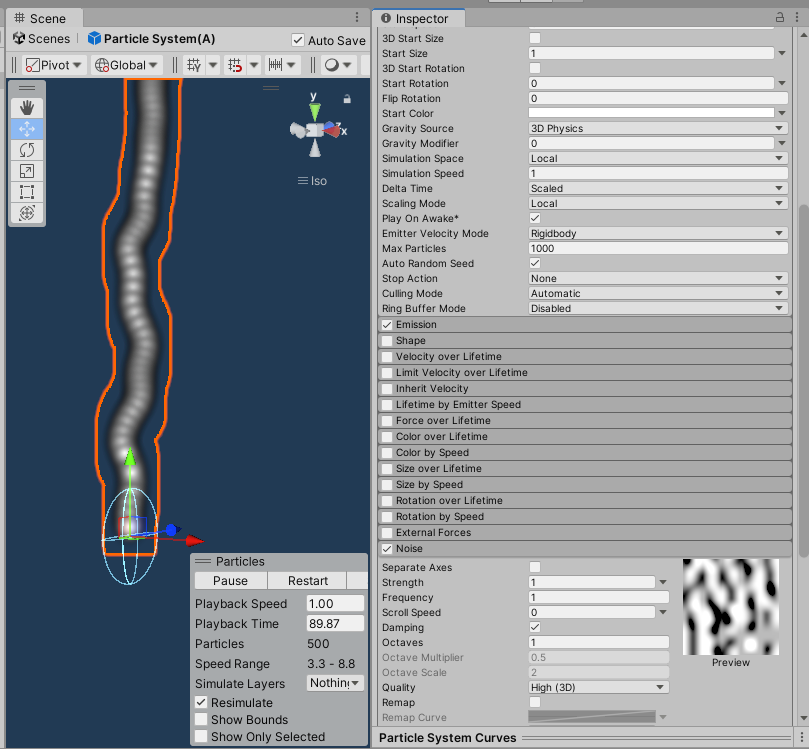
Figure 4.1: Problematic particles
The Noise module is additionally turned on for a particle created with Unity's defaults. As for the other adjusted parameters, to make the particles easier to see, the emission is adjusted in the Emission module so that the particles are emitted in a straight line.
List 4.3: Replay from the 20-second point
1 | ParticleSystem.Simulate(20f, false, false); |
If particles that use the Noise module are simulated with an excessively large number of seconds specified in the first argument, as in List 4.3, a large spike occurs during processing.
List 4.4: Measuring the simulation load
1 2 3 4 5 6 7 8 9 10 11 12 13 14 15 16 17 18 19 20 21 22 23 24 25 26 27 28 29 30 31 32 33 | void OnClickA() { // Destroy the playing particle if there is one if (_activeParticle != null) { Destroy(_activeParticle); _activeParticle = null; } // Create a new one and play it _activeParticle = Instantiate(particlePrefab, Vector3.zero, Quaternion.identity); var ps = _activeParticle.GetComponent<ParticleSystem>(); if (ps != null) { ps.Play(); } } void OnClickB() { if (_activeParticle == null) return; var ps = _activeParticle.GetComponent<ParticleSystem>(); if (ps != null) { Profiler.BeginSample("再シミュレーション"); // Re-simulate ps.Simulate(20f, false, false); Profiler.EndSample(); ps.Play(); } } |
We check how much load is applied by using the Profiler. This is code in which ButtonA creates a particle and ButtonB simulates it. To make it easier to check in Unity's Profiler whether ParticleSystem.Simulate is the problem, we wrap it with Profiler.BeginSample and Profiler.EndSample to make the investigation easier.
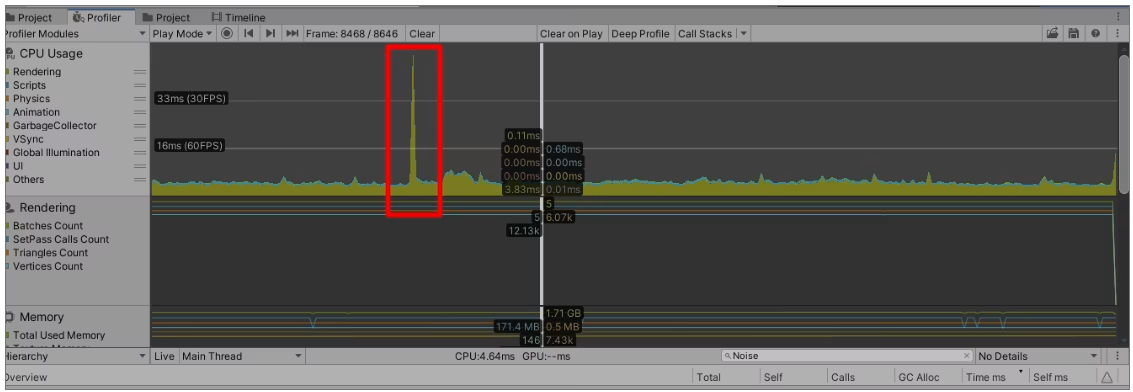
Figure 4.2: The spike occurring
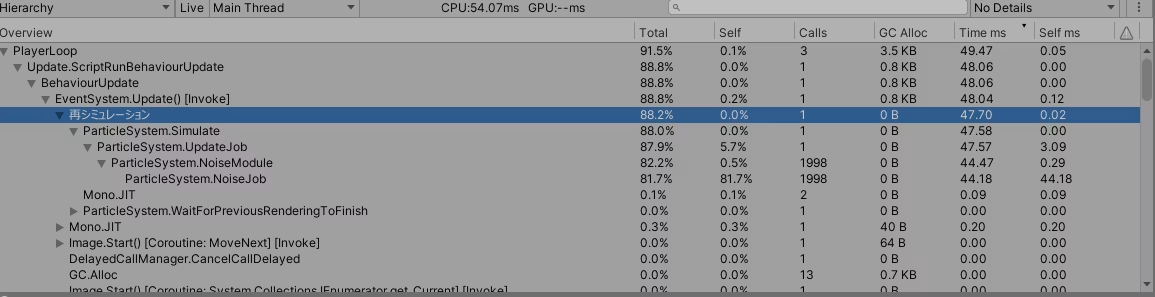
Figure: Processing time As shown, during ParticleSystem.Simulate, NoiseJob is called about 2000 times by the Noise module of the ParticleSystem, which causes a spike of about 50 ms. This number of calls can be reduced somewhat by lowering the ParticleSystem's Max Particles.
4.4. Conclusion
If you need to build a mechanism that emits particles from an arbitrary number of seconds by using ParticleSystem.Simulate,
- Is there a case where a long duration is specified and particles are emitted from midway?
- Is the Noise module used?
Check these two points, and avoid using ParticleSystem.Simulate, especially when using particles with the Noise module enabled.