Chapter 6. Choosing Between UI Systems: IMGUI / uGUI / UI Toolkit
The previous book, "Unity Performance Tuning Bible" *1, covered how to handle uGUI load, such as splitting Canvases and adjusting Raycast Target. This chapter goes one step further back and covers the choice of UI system itself, because that choice determines the load structure of the UI and the kinds of countermeasures available. Unity has three UI systems: IMGUI, uGUI, and UI Toolkit. This chapter takes up these three in turn and organizes how each is positioned today for runtime and for Editor extensions. The descriptions in this chapter are based on information as of Unity 6.5.
6.1. IMGUI
Runtime IMGUI is no longer an option for in-game UI. The official manual states explicitly that it is not intended for regular in-game UI that players interact with, and lists in-game debug displays and tools, custom inspectors, and Editor extensions as its intended uses. It is still used today for debug overlays and runtime log viewers. For Editor extensions, on the other hand, IMGUI is officially current. The official UI system comparison page *2 lists IMGUI as an alternative and gives two advantages: unrestricted access to Editor extension features, and a lightweight API that can quickly draw UI on screen. The official IMGUI migration guide *3 explicitly lists the APIs that have no equivalent in UI Toolkit. Those with the greatest practical impact are InspectorTitlebar(), Toolbar(), IntPopup(), and LinkButton(). All of them are APIs for making an Editor window look like Unity itself, so where they are needed, you currently have to use IMGUI. However, there are load characteristics you should know about when using it for Editor extensions. IMGUI is an immediate mode system in which the UI is written every time inside OnGUI(); it does not retain UI tree information and repeats construction and destruction on every event. The difference from UI Toolkit, which is a retained mode system, is shown in Figure 6.1. OnGUI() runs multiple times per frame, and each run makes heap allocations likely. In an Editor window that is redrawn continuously, this becomes a load on the GC.
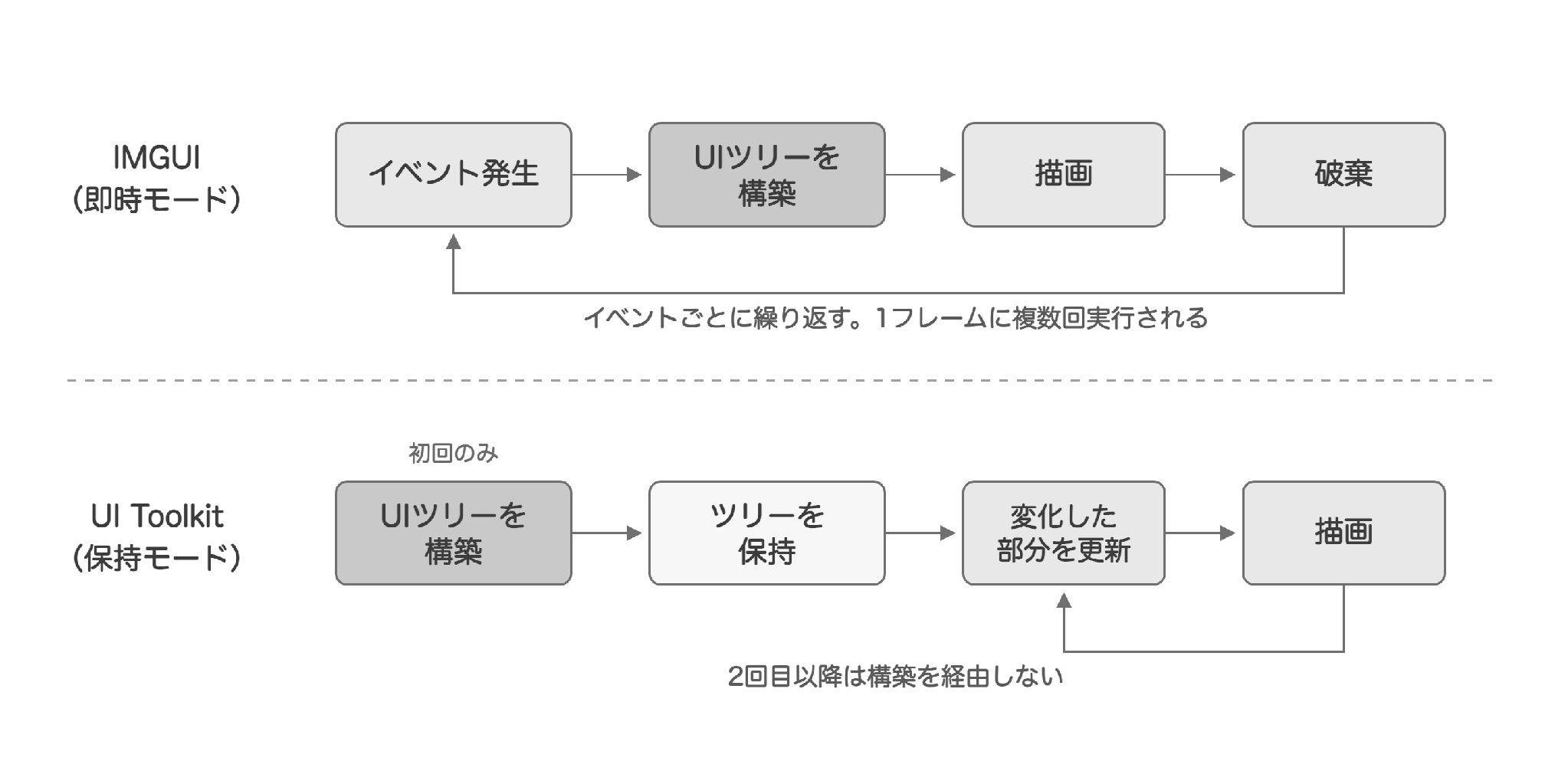
Figure 6.1: Drawing cycles of immediate mode and retained mode
6.2. uGUI
It is a system based on Canvas and GameObjects. Each element is a GameObject and has a Transform hierarchy. It is runtime-only and cannot be used for Editor extensions. It is the de facto standard at runtime. It has three advantages.・You can place elements directly in the Scene view and preview them on the spot・You can animate the UI with Animator and Timeline・The Asset Store has a large number of packages built on the assumption of uGUI In terms of load, a Canvas that has a changed element rebuilds its mesh, and the cost of updating the Transform hierarchy and scanning Raycast Targets increases in proportion to the number of elements. Splitting Canvases and adjusting Raycast Target, covered in the previous book, are both typical countermeasures for the load that comes from this structure.
6.3. UI Toolkit
It is a retained mode system that builds a VisualElement tree once and afterward updates only the parts that changed. Logic is written in C#, UI structure in UXML, and styles in USS. It can be used for both runtime and Editor extensions, and it is the official first recommendation for Editor extensions. However, the official wording is "if you are building a complex Editor tool." For a tool that merely lays out a few fields, building it with C# alone, without bringing in UXML and USS, causes no trouble. In terms of load, the differences from uGUI translate directly into differences in countermeasures. Unlike uGUI, where changing a single element rebuilds the mesh of the entire Canvas, UI Toolkit updates only the parts that changed, so a countermeasure equivalent to splitting Canvases is unnecessary. However, layout calculation cost still grows with the number of elements, so reducing elements remains necessary. In the Unity 6 series, performance improvements are also continuing, such as faster event dispatching, jobified geometry generation, and better caching of layout calculations.
6.3.1. What Is Lacking Compared with uGUI
As of Unity 6.5, the following are things it cannot do. All of them are items that Unity lists as in development *4, but if you are deciding on adoption now, you must assume they are unavailable.・A feature for handling VisualElement keyframe animation in the Animation window・UI editing in the Scene view・A mechanism for referencing a VisualElement defined in UXML from a MonoBehaviour script・Vertex data support for custom shaders The ecosystem also remains thin. Many Asset Store assets assume a GameObject hierarchy and do not work as they are. TextMeshPro also cannot be used from UI Toolkit, which uses its own text system (Advanced Text Generator, which became the default in 6.5). DOTween has also added shortcuts for VisualElement, but only for Unity 6.3 and later *5. When migrating from uGUI, there is no direct equivalent of anchors and pivots. UI Toolkit layout is a method that flows child elements in order inside a parent element. This changes the way UI is assembled, compared with uGUI, where position and size were specified for each element.
6.4. Changes in the Official Recommendation
The official UI system comparison page is published for each manual version, and comparing them shows that the reasons for recommending runtime UI have been swapped *6. The breakdown is shown in Table 6.1.
Table 6.1: Change in the reasons for recommending runtime UI
| Requirement / use | Unity 2022.3 to 6.1 | Unity 6.5 |
|---|---|---|
| Handling a large amount of UI | UI Toolkit | UI Toolkit |
| Needing an authoring workflow for artists and designers | UI Toolkit | UI Toolkit |
| Textureless UI rendering | UI Toolkit | UI Toolkit |
| UI placed and lit in 3D space | uGUI | UI Toolkit |
| Expression with custom shaders and materials | uGUI | UI Toolkit |
| Easy reference from a MonoBehaviour | uGUI | uGUI |
Two items that stayed on the uGUI side consistently from 2022.3 to 6.1 *7 moved to the UI Toolkit side when world-space UI was implemented in 6.2 and custom shaders were implemented for URP in 6.3. For the remaining item, "easy reference from a MonoBehaviour," a mechanism for referencing elements defined in UXML is also among the items in development. However, the structure of the comparison page itself has not changed even in Unity 6.5. It still presents uGUI as the default for runtime UI and lists UI Toolkit as its alternative. Only the reasons for the recommendation have been swapped; which one is placed as the default has not moved. The use-case list on the same page also changed its heading from "Recommendation" in 2022.3 through 6.2 to "Often used for" in 6.3 and later. Unity itself no longer calls it a recommendation.
6.5. Constraints When Using UI Systems Together
Using multiple UI systems in one project is possible in itself, but combining them causes several problems. This section looks at them separately for runtime and Editor extensions.
6.5.1. Runtime
uGUI and UI Toolkit can be used in the same project, but one cannot be embedded inside the other. The official documentation also lists inconsistencies in navigation and styling as constraints. Draw order can be controlled only within each system (Figure 6.2). To display UI Toolkit UI on screen, attach a Panel Renderer component to a GameObject. In Unity 6.4 and earlier this role is played by UIDocument, which was replaced in 6.5 *8. If you use LTS 6.3, it is UIDocument. This Panel Renderer is the unit of ordering: panels are ordered by Sort Order in Panel Settings, and Panel Renderers within the same panel are ordered by PanelRenderer.sortingOrder. uGUI is ordered by the Sort Order of the root Canvas. There is no property that specifies an order across these two. The migration guide from uGUI *9 also mentions compositing the rendering with a render texture, but states explicitly that input events do not reach it. Because it cannot be used for interactive UI, avoid designs that overlay uGUI and UI Toolkit.
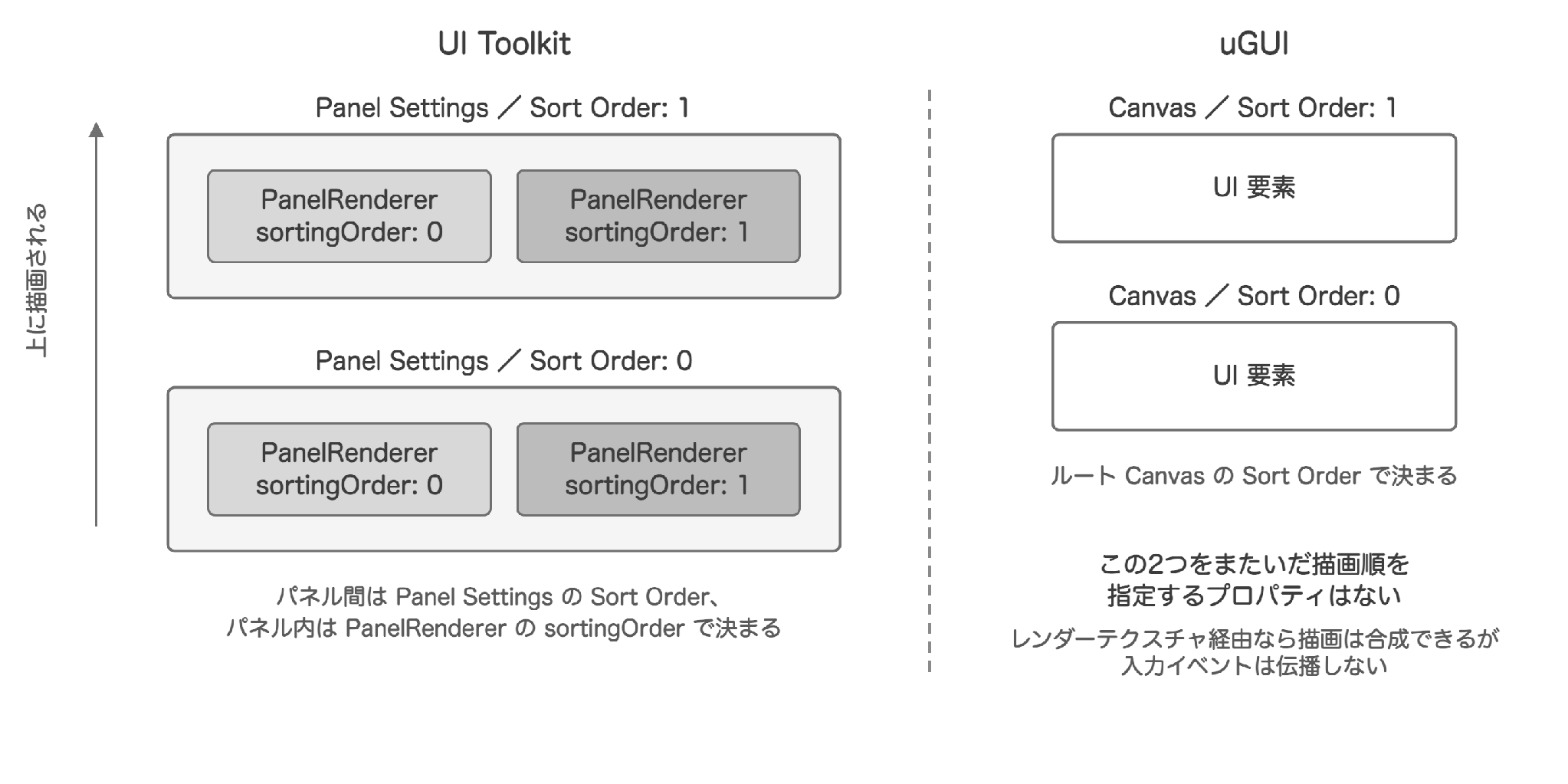
Figure 6.2: How draw order is determined for UI Toolkit and uGUI
6.5.2. Editor Extensions
In Editor extensions, the two systems can be nested in only one direction (Figure 6.3). You can place IMGUI drawing inside a UI Toolkit tree with IMGUIContainer, but the reverse, placing a UI Toolkit tree inside IMGUI drawing, is not possible. This becomes a problem when you build your own inspector display. Inspector customization has two levels: a custom inspector that handles the whole component, and a PropertyDrawer that replaces the appearance per field. The inner PropertyDrawer cannot choose which system's inspector calls it. If a PropertyDrawer implemented only in UI Toolkit is called from a custom inspector written in IMGUI or from within an IMGUI PropertyDrawer, the value field of that field is replaced with the display "No GUI Implemented." Since Unity 2022.2 the default for inspectors is UI Toolkit, so this does not occur in many cases, but in projects that still have IMGUI custom inspectors or PropertyDrawers, you need to provide an IMGUI version of the drawing in the PropertyDrawer as well.
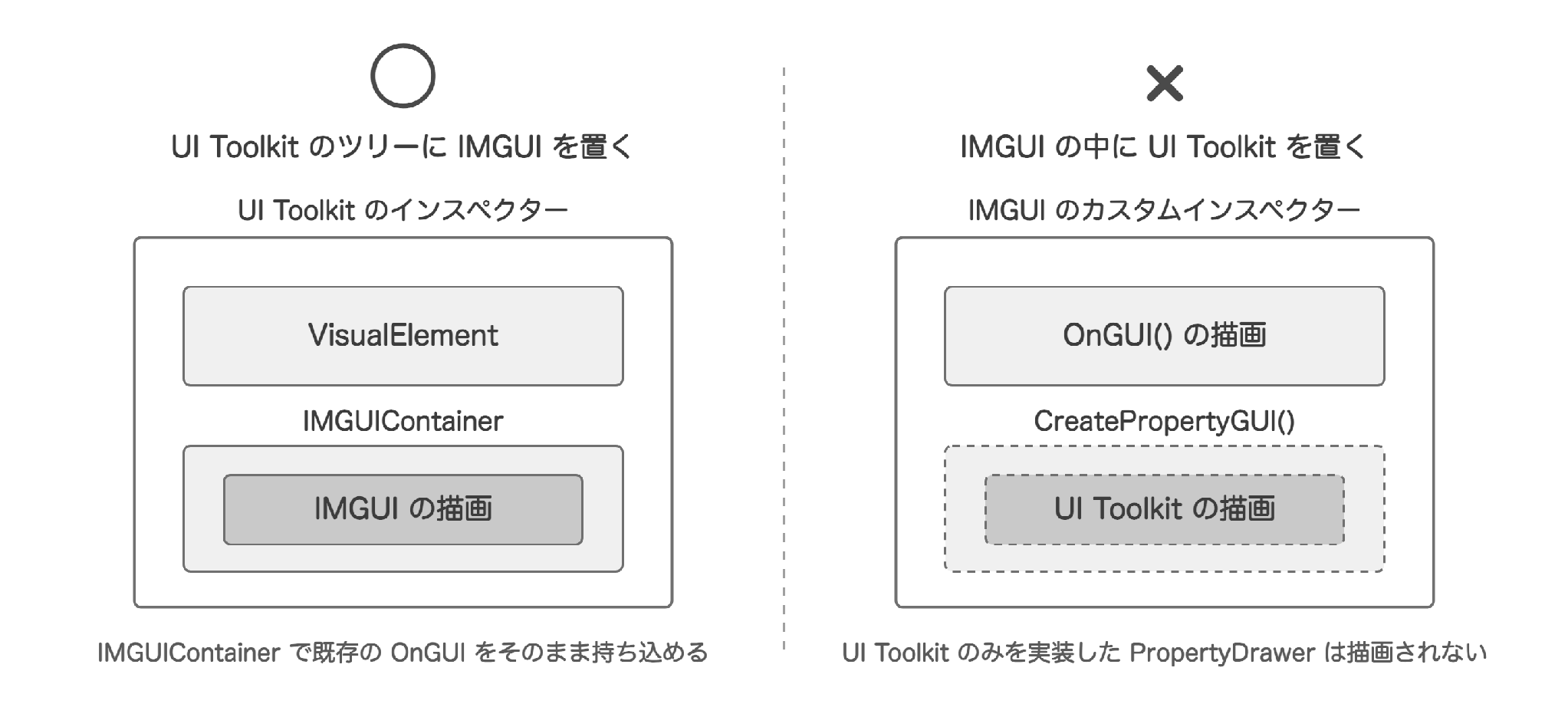
Figure 6.3: Whether PropertyDrawers can be nested
6.6. Conclusion
What stood out in this investigation is that in Unity 6.5, the official reasons for recommendation have almost entirely moved to the UI Toolkit side. For runtime, uGUI remains the standard, and there is no reason to migrate something that already works, but the reasons to avoid UI Toolkit in new development have clearly decreased. When in doubt, it seems best to decide based on how much you depend on Animator and Timeline effects and on Asset Store assets. For Editor extensions, the following division should work for now: UI Toolkit for complex tools, and IMGUI where the look should match the Unity Editor itself. The choice of UI system is the most upstream tuning, because it determines whether the countermeasures covered in the previous book are needed at all.
[*2] https://docs.unity3d.com/6000.5/Documentation/Manual/UI-system-compare.html (accessed August 6, 2026)
[*6] https://docs.unity3d.com/6000.0/Documentation/Manual/UI-system-compare.html (accessed August 6, 2026)
[*7] https://docs.unity3d.com/2022.3/Documentation/Manual/UI-system-compare.html (accessed August 6, 2026)