Chapter 3. Switching Rendering Settings Per Device
Mobile games are expected to be played on a wide range of devices. Applying the same rendering settings uniformly can cause crashes, dropped frames, and heat generation on low-spec devices. Conversely, high-spec devices may be able to deliver better quality by making use of their performance. This section introduces a mechanism for switching to rendering settings appropriate for each device.
3.1. Switching Methods
Two approaches are common in games: a preset format such as low, medium, and high, and a format in which the user directly adjusts values.
3.1.1. Preset Format
This method is for switching in units of presets. It is used both when letting the user choose a preset and when determining one automatically from the device.
In ProjectSettings > Quality, click Add Quality Level and add as many levels as there are presets. Then attach the RenderPipelineAsset corresponding to each preset. If needed, you can also configure the other Quality items (Rendering, Textures, and so on).
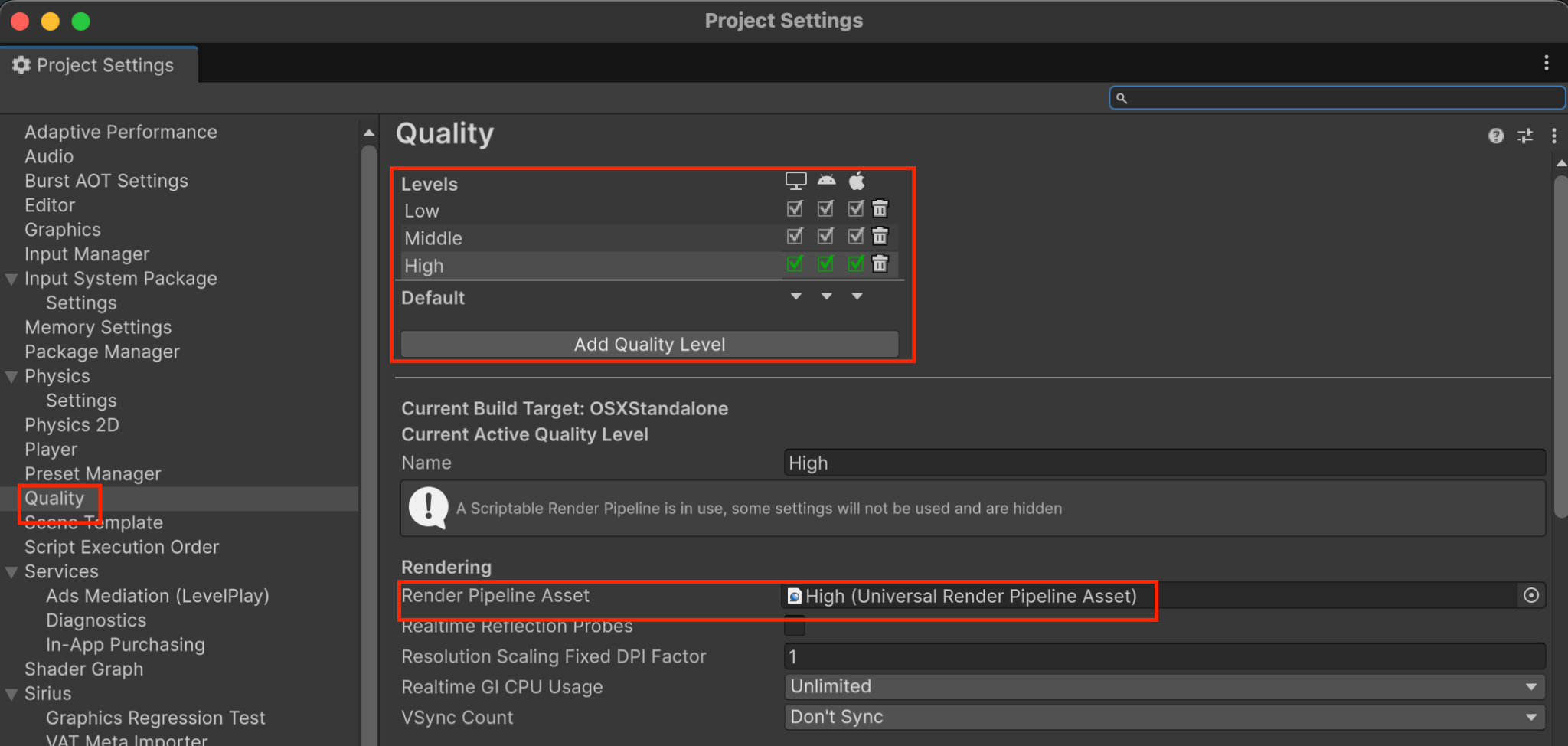
In code, calling QualitySettings.SetQualityLevel switches to any QualityLevel.
3.1.2. Direct Value Manipulation Format
Use this method when letting the user adjust parameters. Parameters can be manipulated directly with code such as the following.
var urpAsset = (UniversalRenderPipelineAsset)GraphicsSettings.currentRenderPipeline;
// Changing the resolution
urpAsset.renderScale = value;
// Changing the number of shadow cascades
urpAsset.shadowCascadeCount = value;
// Others include the shadow resolution and the number of additional lights
3.2. Switching Per Device
There may be cases where you want to recommend or automatically set a preset depending on the device. In that case, the SystemInfo type is useful.
In particular, deviceModel, graphicsDeviceName, and systemMemorySize return values that are easy to use for identification. Examples of the returned values are shown below.
Table 3.1: Examples of values returned by SystemInfo for each device
| Model | deviceModel | graphicsDeviceName | systemMemorySize |
|---|---|---|---|
| iPhone 13 | iPhone14,5 | Apple A15 GPU | about 3800 |
| iPad Pro 11-inch (3rd generation) | iPad13,4 | Apple M1 GPU | about 7800 |
| Galaxy S23 | samsung SM-S911B | Adreno (TM) 740 | about 7500 |
| Pixel 8 | Google Pixel 8 | Mali-G715 | about 7400 |
On iOS, the naming conventions of deviceModel and graphicsDeviceName are consistent, and within the same series, a larger number after A or M generally means higher specs. Combining them therefore allows devices to be classified to a certain degree.
On Android, the returned values vary by model, so it is difficult to compare them uniformly as on iOS. Therefore, it is good to classify devices by approaches such as the following:
- Decide by RAM alone
- Move the data to a master table and compare against it
- Run a benchmark tool at startup
and so on.
3.3. Custom RendererFeature
When you create a custom RendererFeature or similar, it is also useful to provide an API for switching rendering settings. Examples include:
- Lowering the format or resolution of temporary textures
- Reducing the number of Blits
- Replacing with a simpler shader
and similar measures.